Tax Types & Rates
Manage VAT and other tax rates in Point, and assign the correct tax type to each product.
What You'll Learn
- How to view and understand the default VAT rate
- How to add a custom tax type (for example, zero-rated)
- How to assign a tax type to a product
Before You Begin
- You need owner access to Settings
- The default VAT rate (ضريبة القيمة المضافة, 15%) cannot be modified or deleted
Step 1: Go to Settings > Main
From the left sidebar, click Settings, then click Main.
Step 2: Scroll to the Tax Types Section
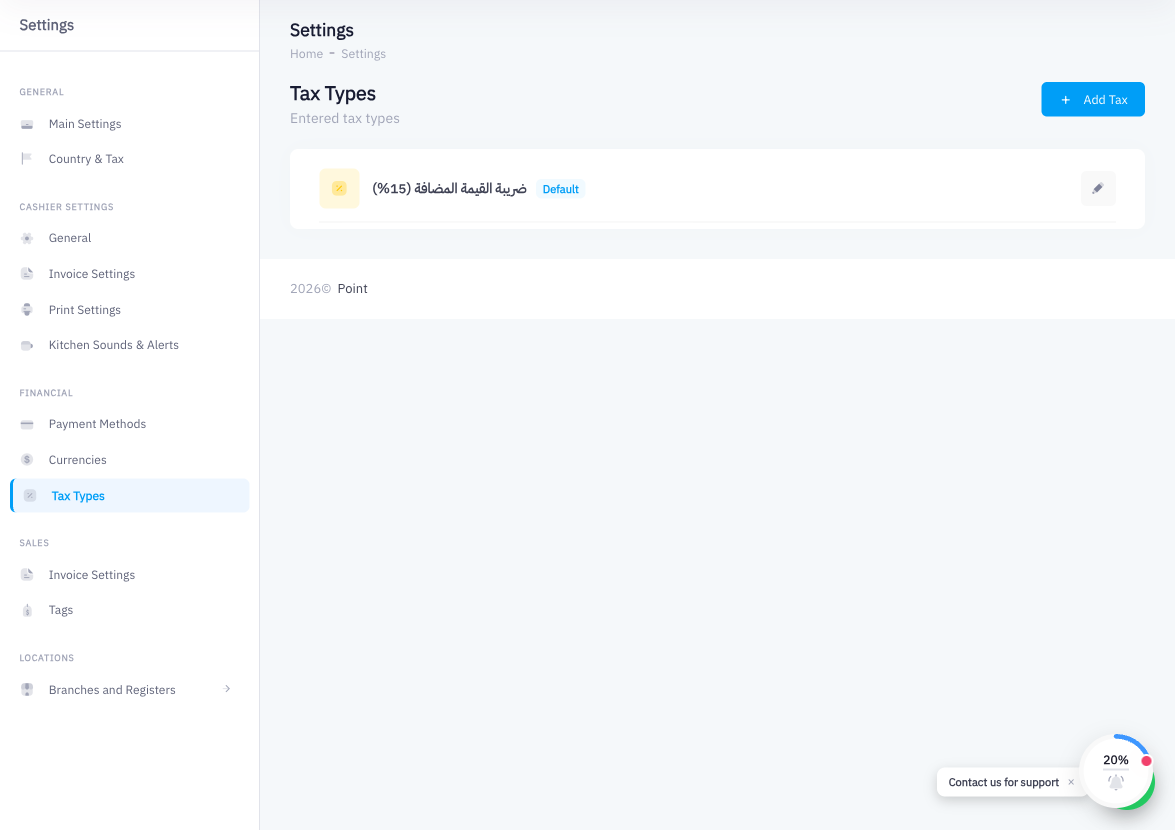
Scroll down the Main settings page to find the Tax Types section. You will see the default tax entry:
ضريبة القيمة المضافة — 15%
This is Saudi Arabia's standard VAT rate. It is applied to all products unless a different tax type is assigned.
Step 3: Click Add Tax
To add a custom tax type, click Add Tax.
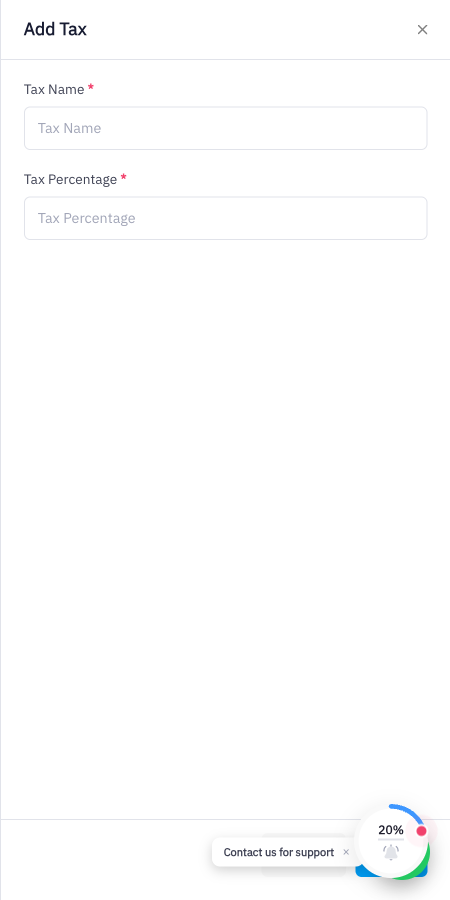
Step 4: Enter the Tax Name
Type a descriptive name for the tax in the Tax Name field. Examples:
- "Zero Rate" (for goods taxed at 0%)
- "Exempt" (for goods exempt from VAT)
Step 5: Enter the Percentage
Enter the tax rate in the Percentage field. For zero-rated goods, enter 0. For a custom rate, enter the appropriate number.
Step 6: Save
Click Save. The new tax type appears in the Tax Types list and is now available when creating or editing products.
Step 7: Assign the Tax Type to a Product
To apply a tax type to a specific product:
- Go to Products
- Open the product you want to update
- Find the Tax Type field in the product form
- Select the appropriate tax type (e.g. "Zero Rate")
- Save the product
At the POS, Point will use the product's assigned tax type when calculating the invoice total.
To make a product completely non-taxable (no VAT at all), select Non-taxable directly on the product form. This is different from zero-rated, which still appears on the ZATCA invoice as a 0% line.
Summary
Point comes with Saudi Arabia's standard 15% VAT pre-configured as the default tax type. You can add custom tax types (such as zero-rated or exempt) for products that require a different treatment. Tax types are assigned per product, giving you full control over how each item is taxed at the POS. The default 15% VAT rate cannot be modified — any products that should use a different rate must have a custom tax type explicitly assigned.