Currency & Multi-Currency
Add additional currencies to Point and make them available as payment options at the POS.
What You'll Learn
- How to add a new currency with a name and symbol
- How to set a currency as the main (default) currency
- How to enable a currency for use at the POS
Before You Begin
- You need owner access to Settings
- The default currency is ريال سعودي (SAR) and is always available
Step 1: Go to Settings > Main
From the left sidebar, click Settings, then click Main.
Step 2: Scroll to the Currencies Section
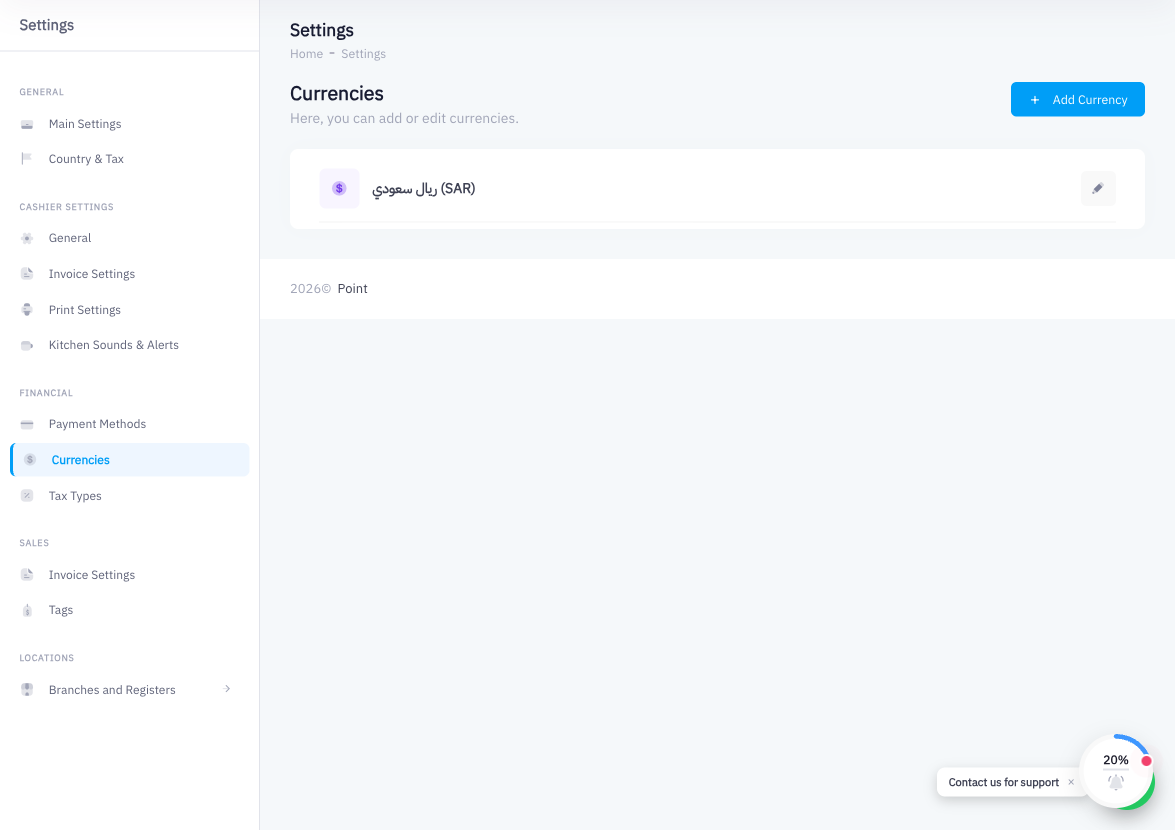
Scroll down the Main settings page to find the Currencies section. The section shows the currently active currencies. Saudi Riyal (SAR) is the default and appears at the top.
Step 3: Click Add Currency
Click Add Currency to open the currency creation drawer.
Step 4: Enter the Currency Name
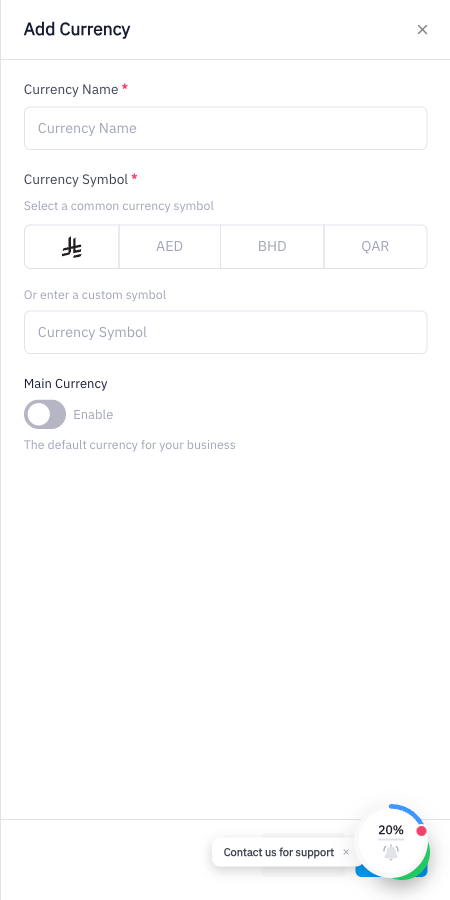
Type the full name of the currency in the Currency Name field (for example, "UAE Dirham" or "درهم إماراتي").
Step 5: Select the Currency Symbol
Choose the currency symbol from the options provided (AED, BHD, QAR) or type a custom symbol. The symbol appears next to prices at the POS.
Step 6: Toggle Main Currency (Optional)
If you want this currency to be the primary currency displayed throughout Point, toggle on Main Currency. Use this setting carefully — changing the main currency affects how prices and totals are displayed across the entire system.
Step 7: Toggle Enable
Turn on the Enable toggle to make this currency available at the POS. Disabled currencies remain in the list but cannot be selected during payment.
Step 8: Save
Click Save. The currency is now listed in the Currencies section and available as a payment option at the POS.
Summary
Multi-currency support lets you accept payment in currencies other than Saudi Riyal. Each currency is added with a name and symbol, then enabled for POS use. The Main Currency toggle controls which currency is treated as the system default. This is useful for businesses near borders or those serving international customers who prefer to pay in their home currency.