Tax Report (VAT Declaration)
Generate a VAT compliance report showing total taxable sales and VAT collected — ready for quarterly ZATCA reporting.
What You'll Learn
- How to open the Tax Declaration report
- How to set a quarterly date range
- How to export the report for ZATCA submission
Before You Begin
- You need the ابتدائي (Starter) plan or above to access this report
- Decide which quarter you are reporting (e.g. Q1: January 1 – March 31)
The Tax Declaration report requires the ابتدائي (Starter) plan or above.
Step 1: Go to Reports
From the left sidebar, click Reports.
Step 2: Click Tax Declaration
In the Reports menu, click Tax Declaration.
Step 3: Set the Date Range
Use the date range picker to select your reporting period. For quarterly VAT reporting, set the range to cover one full quarter:
- Q1: January 1 – March 31
- Q2: April 1 – June 30
- Q3: July 1 – September 30
- Q4: October 1 – December 31
Step 4: Review the Report
The Tax Declaration report shows:
| Field | Description |
|---|---|
| Total Taxable Sales | Revenue subject to VAT |
| VAT Collected | Total VAT collected at 15% |
| Zero-Rated Sales | Sales taxed at 0% |
| Exempt Sales | Sales not subject to VAT |
Review the numbers to ensure they reflect your actual trading activity for the period.
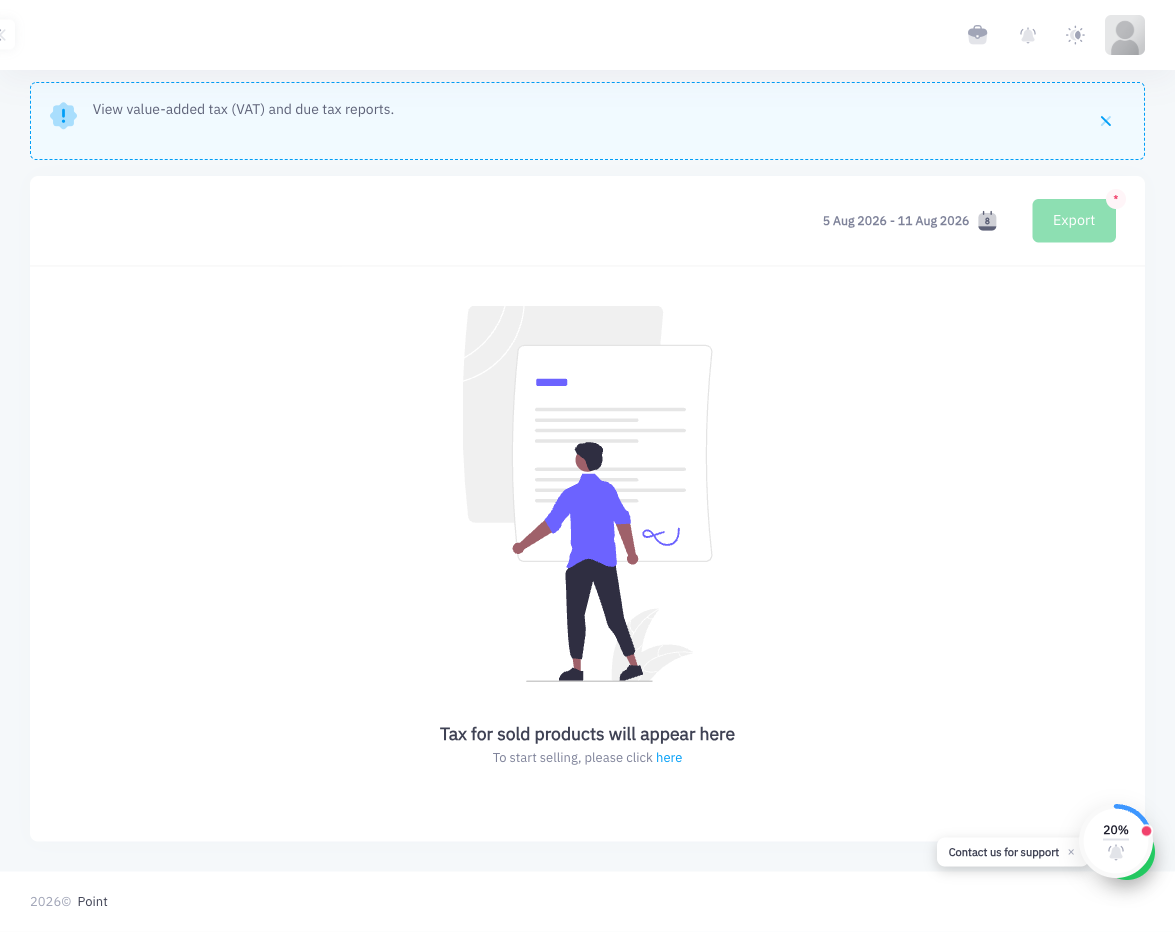
Step 5: Export
Click Export to download the report. Provide this file to your tax advisor or submit it through the ZATCA portal as required.
Summary
The Tax Declaration report consolidates all VAT-related activity into a single view for any date range. By filtering to a calendar quarter, you get the data required for your periodic VAT return. The report covers taxable, zero-rated, and exempt sales, as well as total VAT collected. This report requires the Starter plan or above.