Expense Tracking
Record operational expenses such as rent, salaries, and shipping, then view a categorized expense report.
What You'll Learn
- How to add an expense with a category, cost, and tax type
- How to view the expense breakdown report
Before You Begin
- You need access to the Expenses section and Reports section
Step 1: Go to Expenses
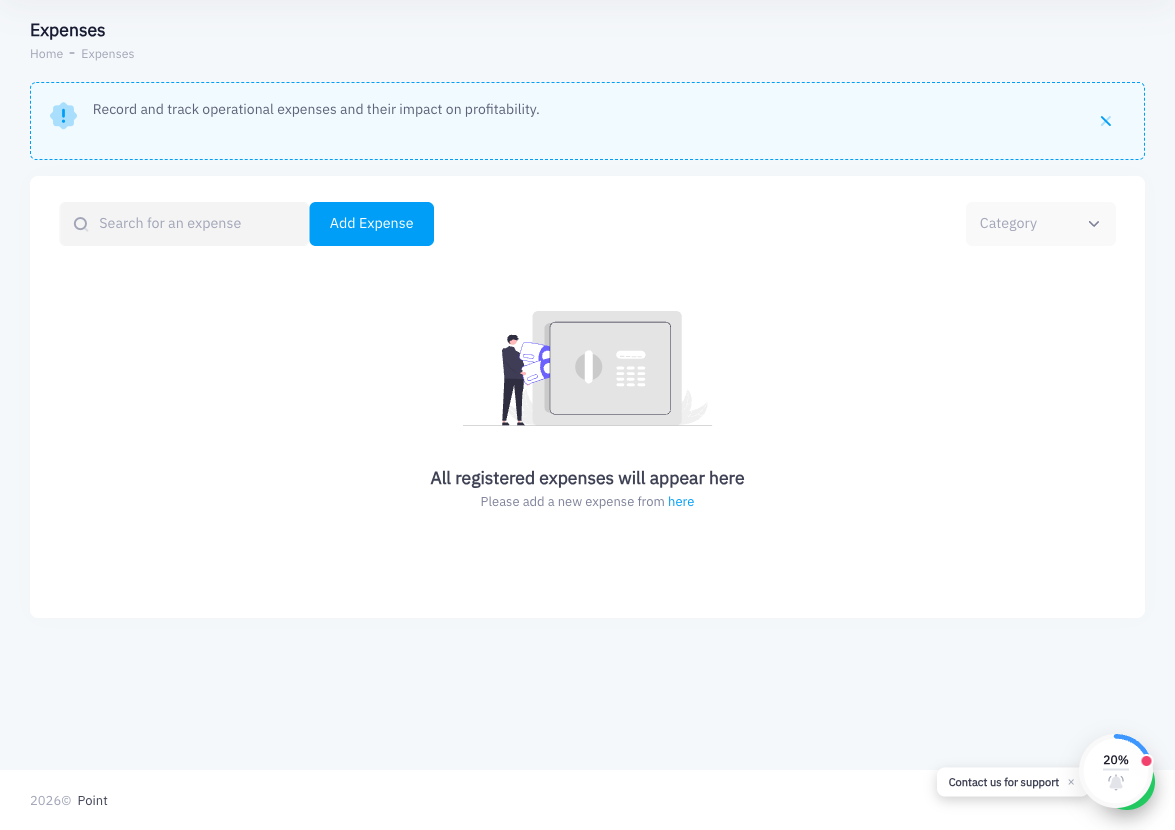
From the left sidebar, click Expenses.
Step 2: Click Add Expense
Click Add Expense at the top right of the page.
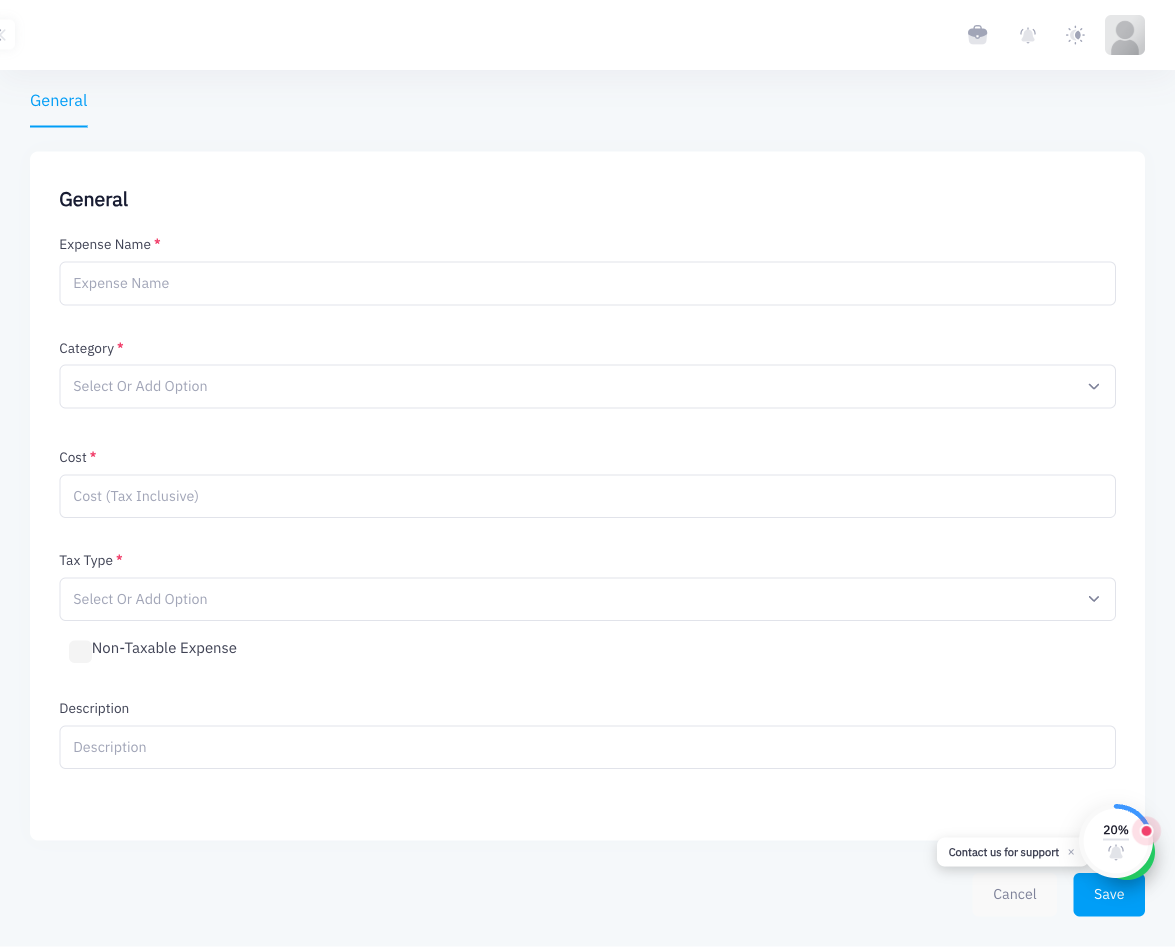
Step 3: Enter Expense Name
Type a descriptive name for this expense in the Expense Name field (for example, "Monthly Rent" or "Staff Salaries – July").
Step 4: Select Category
Choose the most appropriate category from the Category dropdown:
- Inventory
- Shipping
- Salaries
- Other
Step 5: Enter Cost
Type the expense amount in the Cost field.
Step 6: Set Tax Type
Select the applicable Tax Type for this expense (for example, VAT 15% if the expense includes VAT, or Non-taxable if it does not). This affects how the expense appears in your tax records.
Step 7: Add Description (Optional)
Enter a description or reference number in the description field for your records.
Step 8: Save
Click Save. The expense is recorded and becomes available in the Expenses report.
Step 9: View in Reports > Expenses
To review your expenses:
- From the left sidebar, click Reports
- Click Expenses
- Set the date range and any filters
- Review the categorized breakdown: total by category, individual expense lines
Summary
Tracking expenses in Point gives you a complete picture of business costs alongside your sales data. Expenses are categorized (Inventory, Shipping, Salaries, Other) and can carry a tax type for accurate financial reporting. Once saved, they appear in the Expenses report where you can filter by date and category. This helps you track operating costs and understand net profitability beyond just gross sales.