Creating a Promotion
Set up percentage-off discounts or Buy X Get Y offers and apply them to specific products, categories, or tags.
What You'll Learn
- How to create a Discount-type promotion with a percentage off
- How to scope a promotion to specific products, categories, or tags
- The difference between Discount and Buy X Get Y promotion types
Before You Begin
- You need owner or manager access to create promotions
- Have the products or categories you want to discount ready
The Free plan allows 1 active promotion. The ابتدائي (Starter) plan and above allow unlimited promotions.
Step 1: Go to Promotions
From the left sidebar, click Promotions. You will see a list of all existing promotions.
Step 2: Click Add Promotion
Click Add Promotion at the top right of the page.
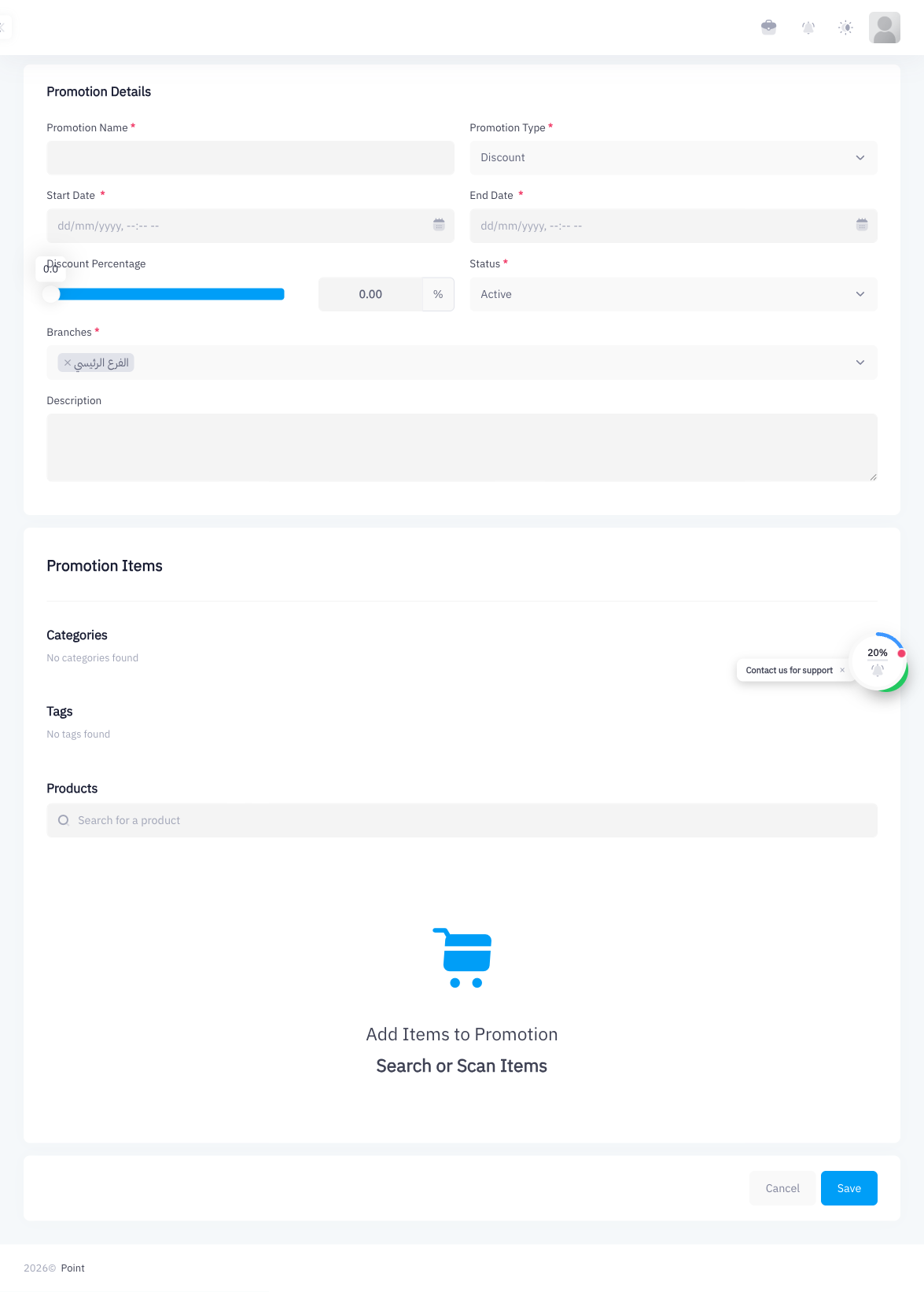
Step 3: Enter Promotion Name
Type a clear, descriptive name in the Promotion Name field (for example, "Summer Sale 10% Off" or "Weekend Flash Deal").
Step 4: Select Promotion Type
Choose the type from the Promotion Type dropdown:
- Discount — applies a percentage discount to matching items
- Buy X Get Y — when the customer buys X items, they get Y items free or discounted
For a simple percentage-off deal, select Discount.
Step 5: Set Discount Percentage
Enter the discount amount in the Discount Percentage field (for example, 10 for 10% off).
Step 6: Set Start and End Dates
Enter the Start Date and End Date for the promotion. Point will automatically apply the promotion within this window and stop it when the end date passes.
Step 7: Select Branches
In the Branches section, check the branches where this promotion should be active. You can select one branch, multiple branches, or all branches.
Step 8: Add Items to the Promotion
Scroll down to the Promotion Items section. Use the three tabs to scope which items receive the discount:
- Categories tab — select entire product categories
- Tags tab — select by product tag
- Products tab — search or scan individual products using the Search or Scan Items input
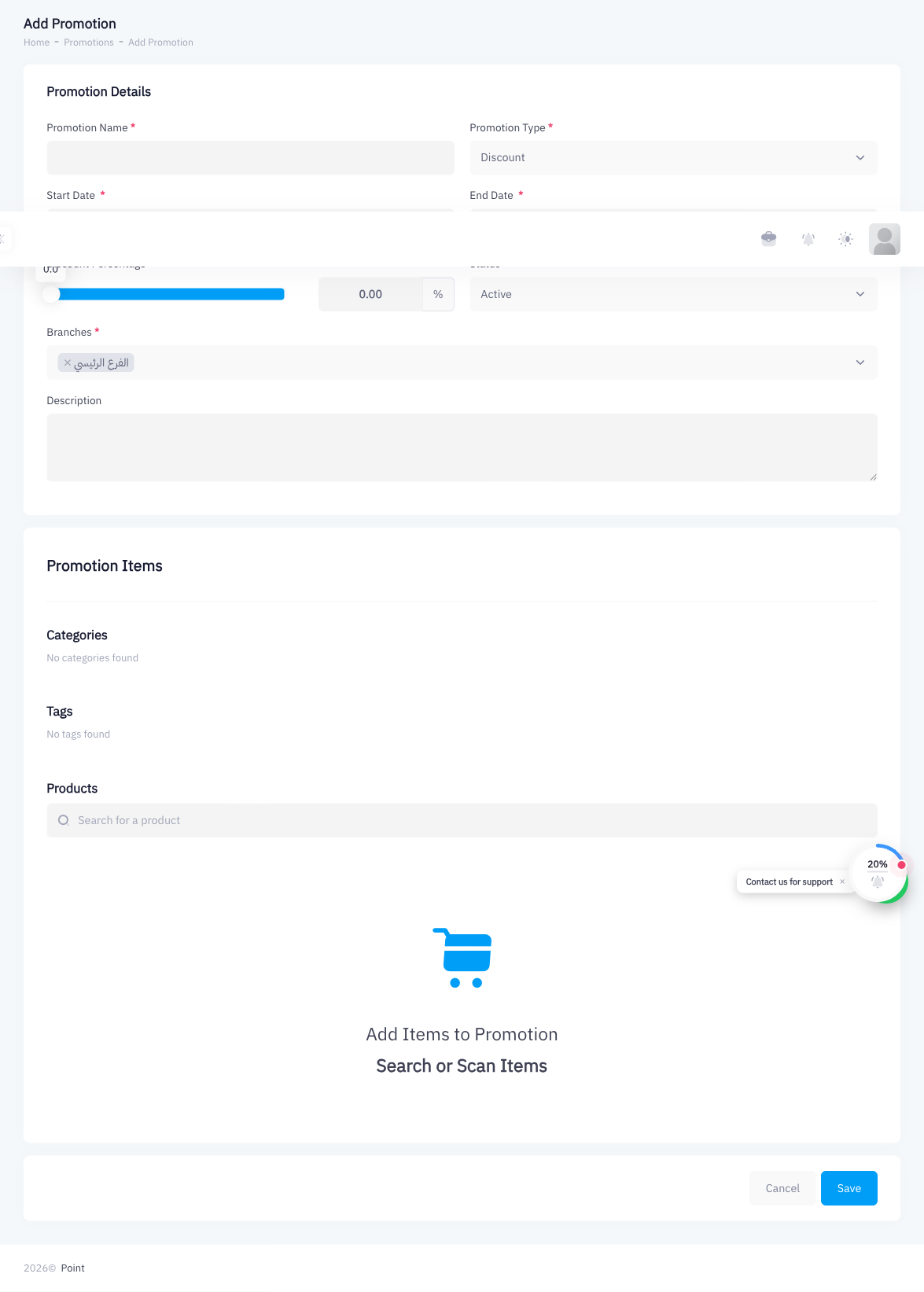
Add items from any combination of tabs. The promotion applies to all items added here.
Step 9: Click Save
Click Save to activate the promotion. It will apply automatically at the POS during the date window you set.
Summary
Point supports two promotion types: Discount (percentage off) and Buy X Get Y. When creating a promotion, you define the discount amount, date range, and which branches it applies to. The Promotion Items section lets you scope the deal to specific products, categories, or tags — so only those items are discounted at the POS. The Free plan supports 1 promotion; the Starter plan and above support unlimited promotions.