Inventory Transfers
Move stock from one branch to another without creating a sale or purchase record.
What You'll Learn
- When to use a transfer order versus a purchase order
- How to create a transfer order and specify source and destination branches
- How Point updates stock at both branches after a transfer is saved
Before You Begin
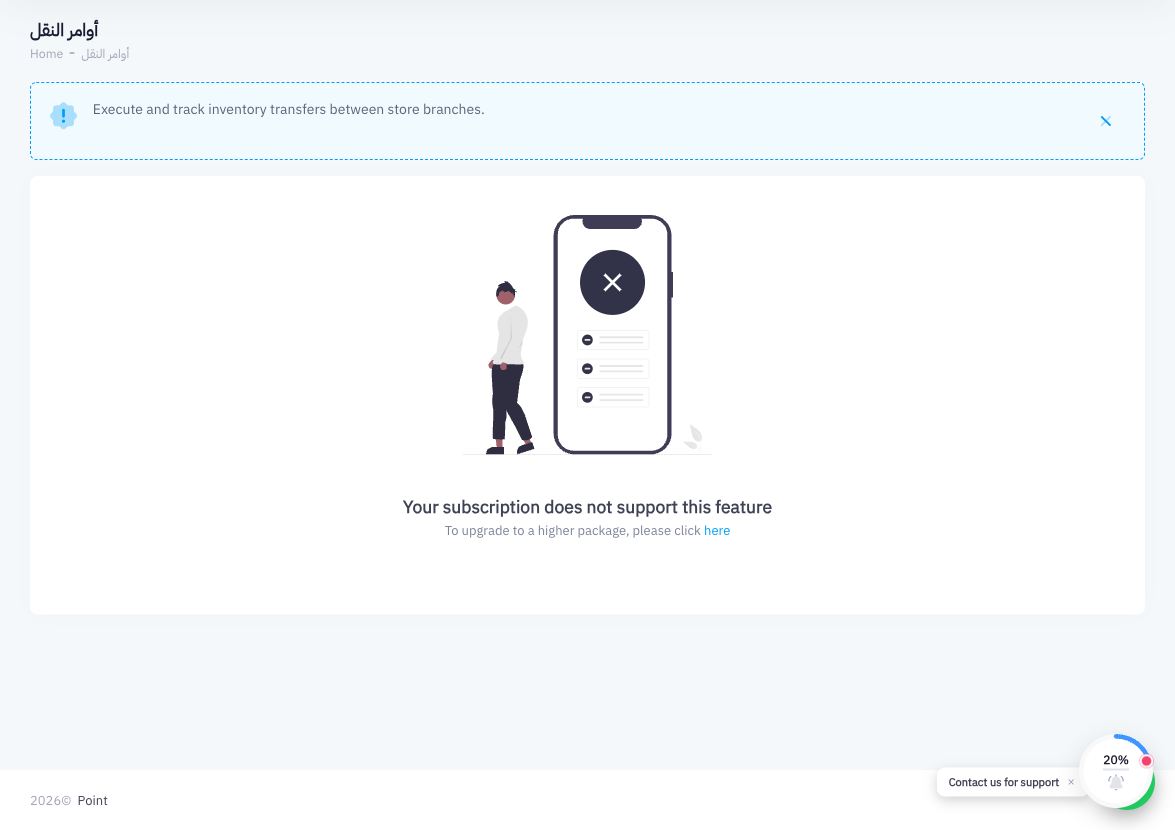
- Transfer Orders require the Advanced (متقدم) subscription plan
- You must be logged in as an Owner or a user with inventory-management permissions
- Both the source and destination branches must exist in your account
- The products being transferred must have sufficient stock at the source branch
Transfer Orders require the Advanced (متقدم) subscription plan. If this option is not visible in your navigation, upgrade your subscription in Settings > Subscription.
Step 1: Go to Transfer Orders
From the main navigation, go to Inventory (or the Stock Control section in the sidebar) and click Transfer Orders. The list of existing transfers appears.
Step 2: Click Add Transfer Order
Click the Add Transfer Order button to open the transfer form.
Step 3: Select Source and Destination Branches
In the transfer form:
- From Branch — select the branch that currently holds the stock you want to move
- To Branch — select the branch that should receive the stock
The two branches must be different. Point will not allow a transfer from a branch to itself.

Step 4: Add Products and Quantities
Search for each product you want to transfer and enter the quantity to move. Point checks that the source branch has enough stock. If you enter a quantity greater than the available stock, a validation error will appear.
Repeat for each product included in this transfer.
Step 5: Save
Click Save to finalize the transfer. Point immediately:
- Decreases the quantity of each transferred product at the source branch
- Increases the quantity of each transferred product at the destination branch
The transfer order is recorded and can be reviewed at any time from the Transfer Orders list.
Summary
Transfer orders let you redistribute stock between your branches without any sales or purchases being recorded. The source branch loses the specified quantities and the destination branch gains them instantly upon saving. This keeps your per-branch inventory figures accurate when you are balancing stock across locations.
What's Next
- Stock Counts & Audits — verify stock levels at a branch after a transfer
- Purchase Orders (Receive Orders) — bring new stock into the system from a supplier
- Managing Stock Levels — make quick manual corrections when needed