Managing Stock Levels
View and update how many units of each product are available at each branch directly from the product edit page.
What You'll Learn
- Where to find the per-branch stock levels for a product
- How to manually update a product's quantity
- When to use a Purchase Order instead of a manual edit
Before You Begin
- You must be logged in as an Owner or a user with product-management permissions
- Understand which branch or branches you need to update before making changes
Manual quantity edits are best for initial setup or one-off corrections. For ongoing restocking, use Purchase (Receive) Orders — they create an audit trail and update costs automatically. See Purchase Orders.
Cashiers can view stock levels on the POS product list but cannot edit quantities. Contact your manager if a stock level is incorrect.
Step 1: Go to Products
From the main navigation, click Products to open the product catalog.
Step 2: Find the Product and Click Edit
Locate the product whose stock you want to update. Click the pencil icon (Edit) on its row. The product edit form opens.
Step 3: View the Inventory Section
Scroll down to the Inventory section on the General tab. This section lists every branch in your account with two columns:
- Quantity — the current stock level at that branch
- Price — the tax-inclusive selling price at that branch
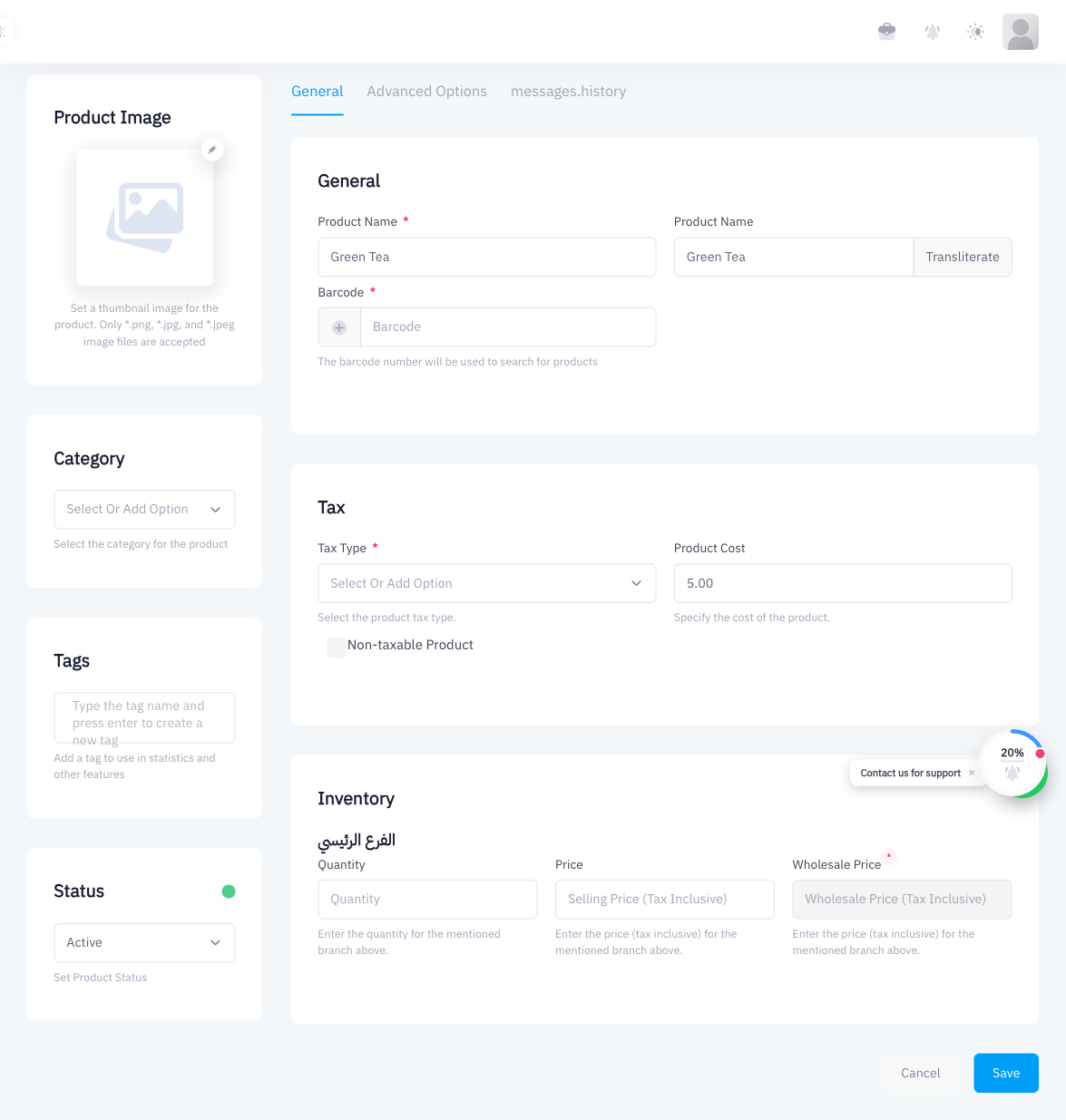
Step 4: Update the Quantity Field
Click into the Quantity field for the branch you want to change and type the new value. Repeat for any other branches that need updating.
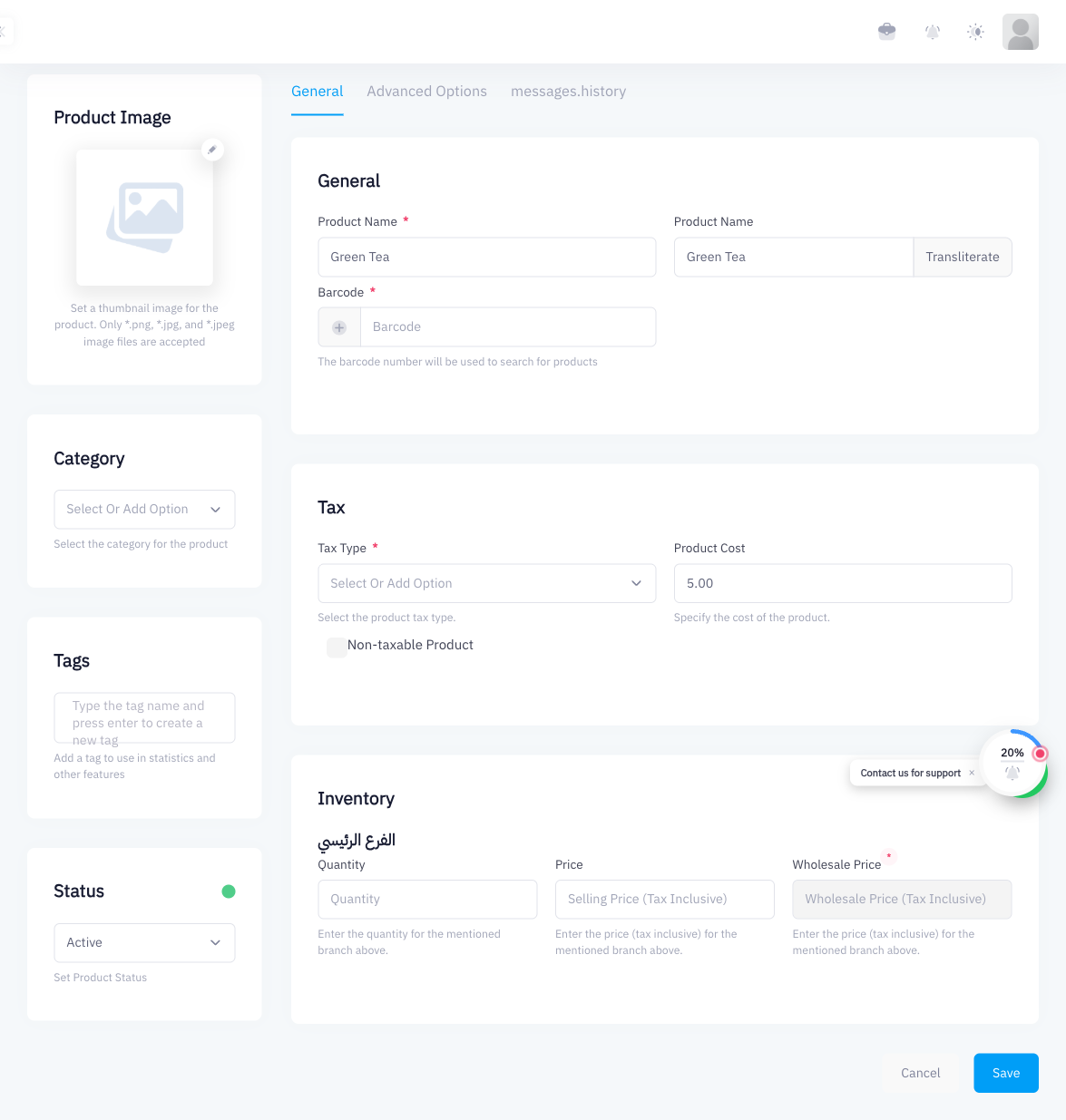
Enter the quantity as the total on-hand amount, not a delta. If you currently have 10 units and received 5 more, enter 15, not 5.
Step 5: Save
Click Save at the bottom of the form. Point updates the stock level immediately. The new quantity is reflected on the POS cashier screen and in inventory reports.
Summary
You can update a product's stock levels at any branch by opening the product edit form and changing the quantity in the Inventory section. This is useful for initial stock setup and manual corrections. For regular restocking from a supplier, use Purchase Orders (Receive Orders) instead — they provide a full audit trail of incoming stock.
What's Next
- Purchase Orders (Receive Orders) — restock products with a proper audit trail
- Stock Counts & Audits — reconcile physical counts against system quantities
- Inventory Transfers — move stock between branches