Composite / Bundle Products
Create a bundle that is sold as a single item while automatically deducting each component from inventory.
What You'll Learn
- What a composite product is and when to use one
- How to create a composite product and add its component items
- How selling a bundle affects component stock levels automatically
Before You Begin
- You must be logged in as an Owner or a user with product-management permissions
- All component products must already exist in your catalog before you can add them to a bundle
- Component quantities and prices should be decided in advance
Composite products are managed by owners and managers. When a cashier sells a bundle on the POS screen, Point deducts each component's stock automatically — no manual adjustment is needed.
Step 1: Go to Products
From the main navigation, click Products to open the product catalog.
Step 2: Click Add Product > Composite
Click the Add Product button in the top-right corner and choose Composite from the dropdown. The composite product form opens with a dedicated Components section.
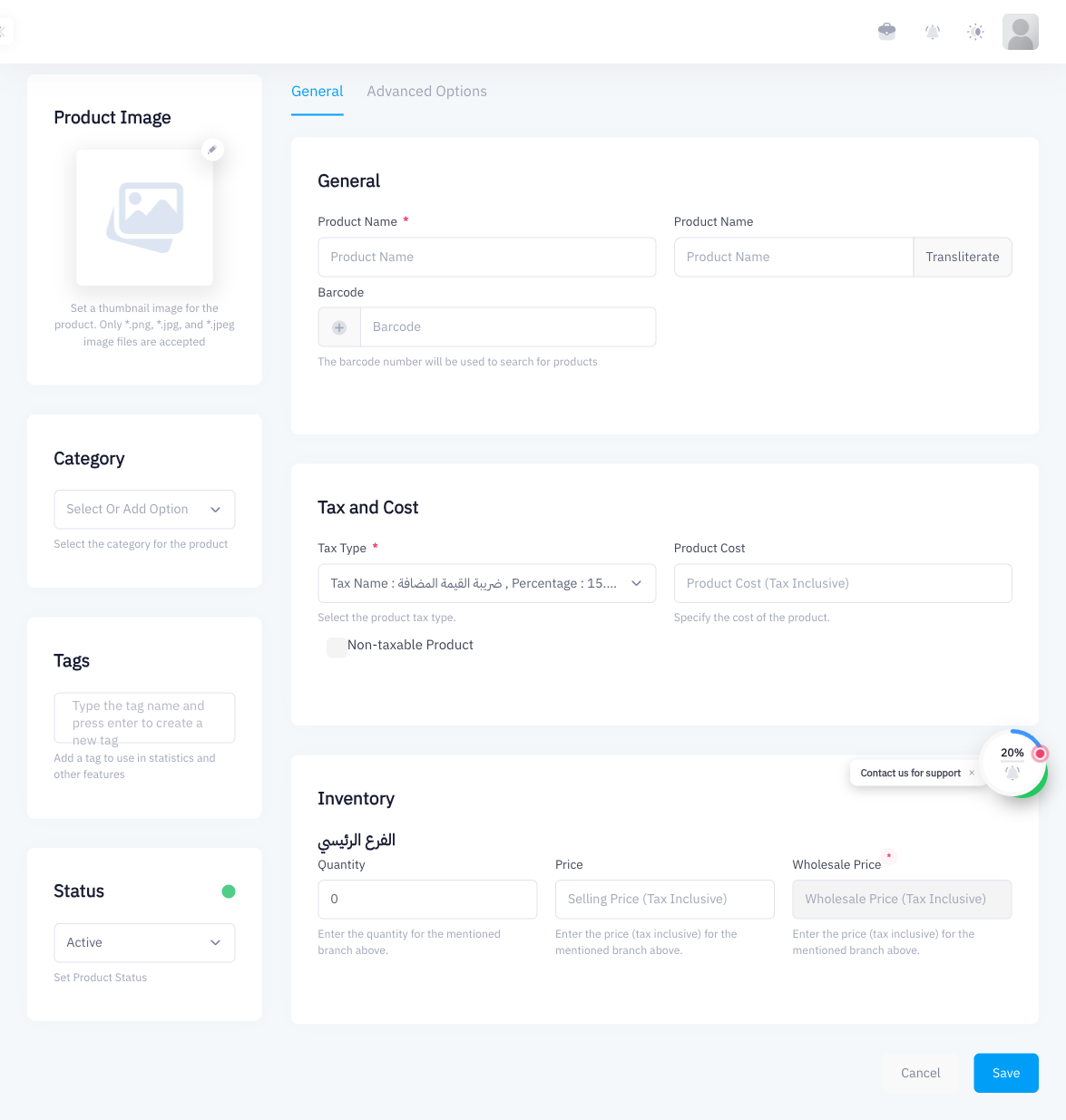
Step 3: Enter the Bundle Name and Details
Fill in the product details just as you would for a simple product:
- Product Name — for example, "Stationery Starter Kit"
- Tax Type — the VAT rule that applies to the bundle as a whole
- Product Cost — the combined cost of all components (for margin tracking)
- Category and Image in the left sidebar
Step 4: Add Components
Scroll to the Components section and build the bill of materials (BOM):
- Click Add Component (or the search field) and search for a product already in your catalog.
- Set the quantity of that component included in one bundle — for example, 1 notebook, 2 pens, 1 ruler.
- Repeat for each component.
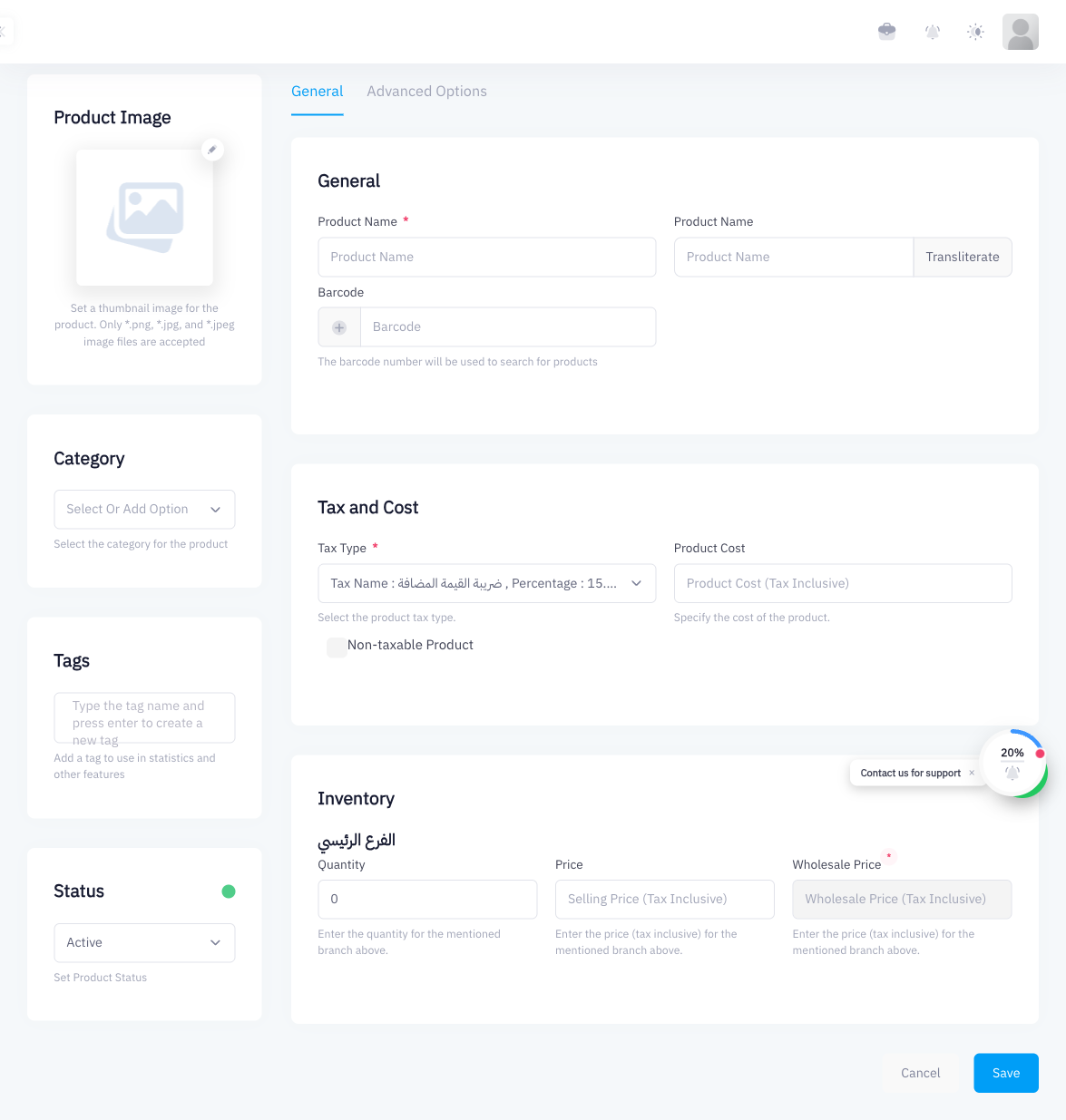
When one unit of the bundle is sold, Point deducts the specified quantity of each component from your branch inventory.
Step 5: Set Bundle Quantity and Price
In the Inventory section, enter:
- Quantity — how many bundles are available (or leave this based on component availability)
- Price — the tax-inclusive selling price of the entire bundle
The bundle price is independent of the sum of individual component prices. You can price a bundle at a discount to incentivize bundled purchases — the system will not override your chosen bundle price.
Step 6: Save
Click Save. The composite product now appears in your catalog and is available on the POS screen. When it is sold, Point automatically deducts each component from inventory at the branch where the sale occurs.
Summary
Composite products (also called bundles) allow you to group multiple existing products under one sellable item. Point tracks a bill of materials (BOM) for each bundle and deducts component stock automatically on every sale, keeping your inventory accurate without any manual work.
What's Next
- Managing Stock Levels — review how component stock changes after bundle sales
- Adding Your First Product — make sure all components are created first
- Purchase Orders — restock components when they run low