Searching & Filtering Products at the POS
Find any product in seconds using search, barcode scanning, or category filters.
What You'll Learn
- How to search for a product by name or SKU
- How to scan a barcode to instantly add a product to the cart
- How to browse products by category
- How to adjust quantities after adding a product
Before You Begin
- You are logged in and on the Cashier screen (
/pos) - Products have been added to your catalog by the store owner
Step 1: Open the Cashier Screen
Navigate to the Cashier screen. Point automatically redirects you to the correct branch and register. You will see the three-column layout: cart on the left, products on the right.
Step 2: Search for a Product by Name
Click the Search for a product bar at the top of the products panel (the field with id="search"). Type any part of the product name, SKU, or barcode number. The product grid updates in real time as you type.
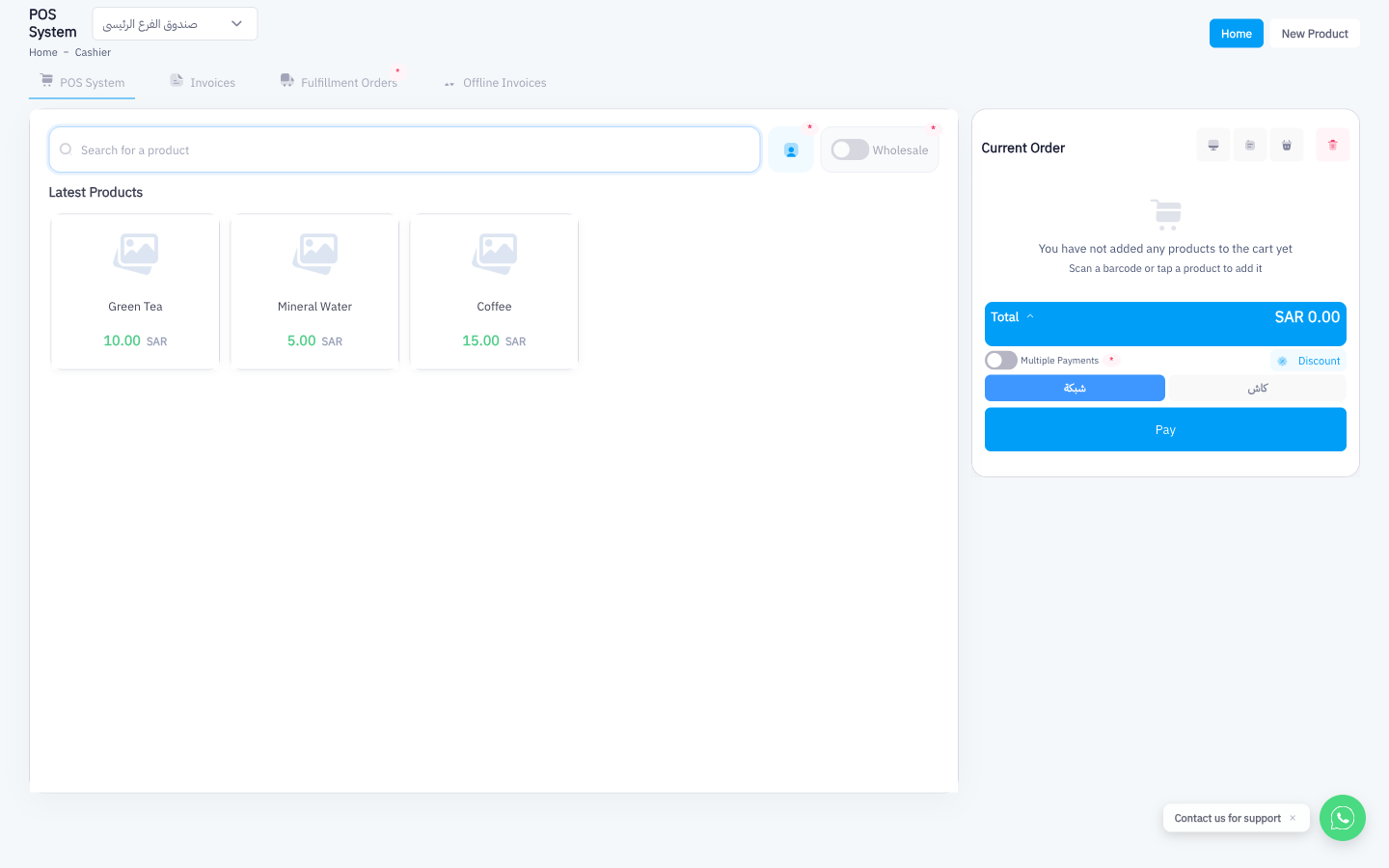
You do not need to press Enter — results appear as you type. Clearing the field returns the full product grid.
Step 3: Scan a Barcode to Add Directly to the Cart
If you have a USB or Bluetooth barcode scanner connected, simply scan the product barcode while the Cashier screen is open. Point reads the barcode through the same search field and instantly adds the product to the cart without any extra clicks.
If the barcode matches multiple products, a selection list appears. If it matches exactly one product, it is added immediately.
Step 4: Use Category Filter Buttons to Browse
Below the search bar, Point displays a horizontal row of category buttons. Tap a category name to filter the product grid to only that category. Tap the same button again (or tap All) to clear the filter.
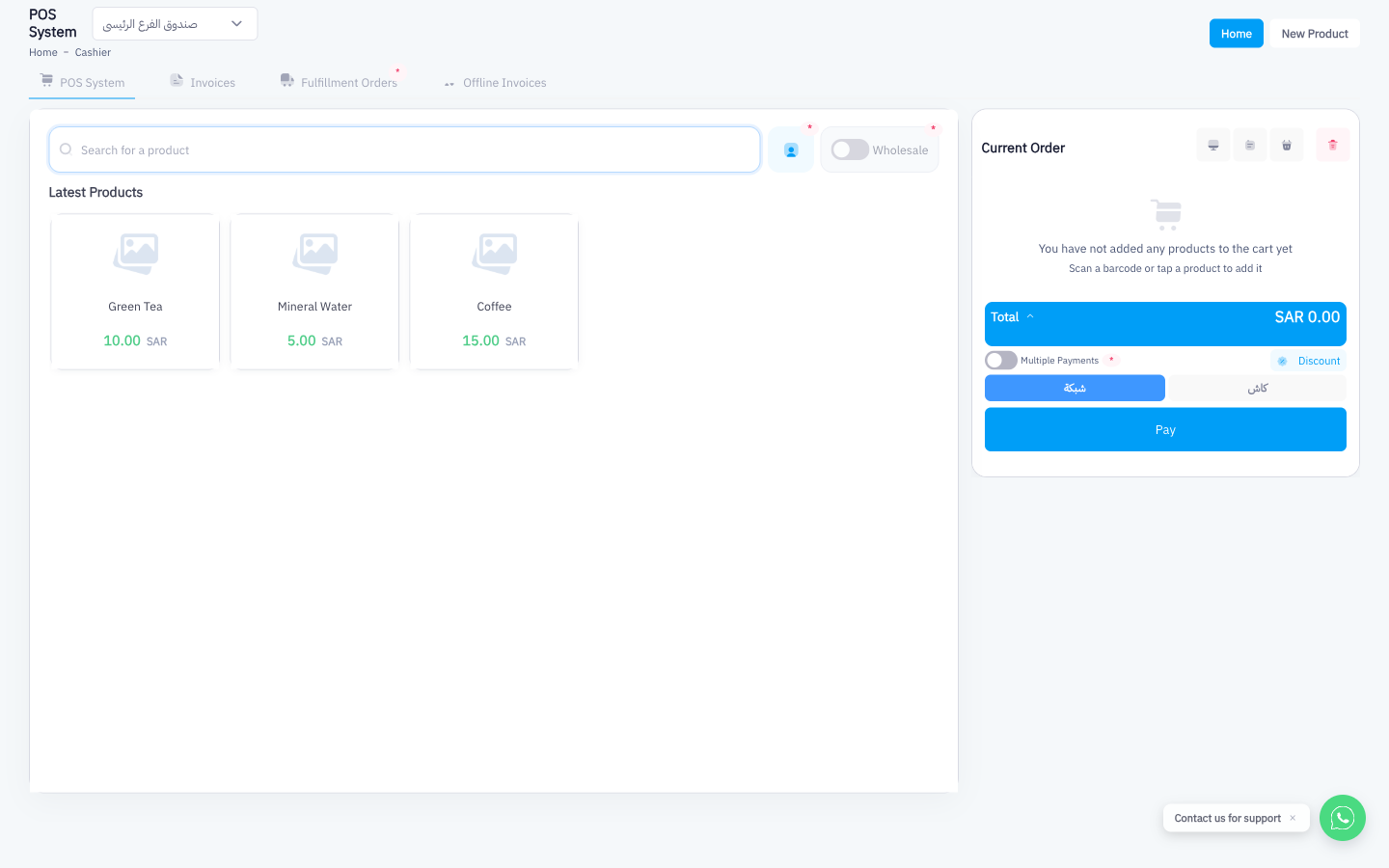
You can combine a category filter with a text search — for example, filter to "Beverages" and then type "water" to narrow the results further.
Step 5: Adjust Quantity in the Cart
After adding a product to the cart, use the − and + buttons next to the line item to decrease or increase the quantity. The line total and cart total update immediately.
To remove a product entirely, tap − until the quantity reaches zero, or use the delete icon if available on the line item.
Summary
The POS search panel gives cashiers three fast ways to find products: typing in the search bar, scanning a barcode for instant cart addition, and tapping category filter buttons to browse. Combining these methods keeps checkout lines short and reduces errors from selecting the wrong product.