Processing a Return
Reverse a sale and restock inventory when a customer returns a purchase.
What You'll Learn
- How to find the original invoice in the POS
- How to initiate a full or partial return
- What happens to inventory and the credit note after a return
Before You Begin
- You are logged in with cashier or owner access
- The original invoice exists in Point (it was created through Point, not an external system)
- The products being returned must be marked as returnable on the product form
Step 1: Open the Invoices Tab
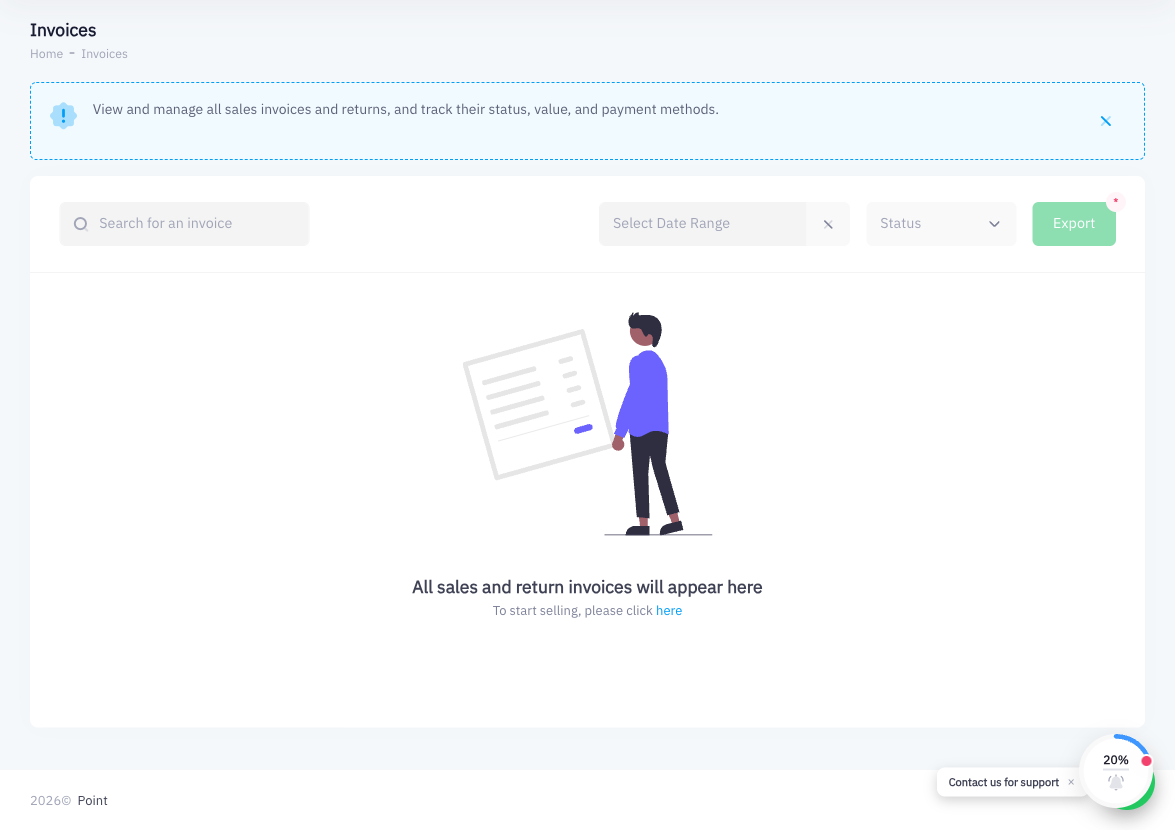
From the Cashier screen, click the Invoices tab in the top navigation bar of the POS. This shows the list of invoices for your current branch.
Step 2: Find the Original Invoice
Use the search field to locate the invoice by invoice number, customer name, or phone number. Scroll through the list if needed. Click the invoice to open the invoice detail view.
Step 3: Click Return
Inside the invoice detail view, click the Return button. Point loads the return screen showing all line items from the original invoice.
Step 4: Select Items to Return
Choose whether to return the entire order or only specific items.
- Full return: select all items in the list.
- Partial return: check only the items the customer is returning. For each selected item, you can also adjust the quantity if the customer is returning fewer units than originally purchased.
A product can only be returned if the Returnable option is enabled on its product record. If the Return button is unavailable for a line item, the product has been configured as non-returnable. Contact your owner to update the product setting if needed.
Step 5: Confirm the Return
Review the return summary — the items selected, quantities, and refund total. Click Confirm to complete the return.
Step 6: Point Generates a Credit Note and Restocks Inventory
After confirmation, Point:
- Generates a credit note linked to the original invoice. The credit note appears in the Invoices list and can be printed or sent to the customer.
- Restocks the returned items in inventory automatically — no manual stock adjustment is needed.
- Submits the credit note to ZATCA as required by Saudi e-invoicing regulations.
Returned amounts are recorded against the original payment method in the daily register report. If the customer paid by cash, remember to issue the refund in cash. Point records the refund but does not physically dispense cash.
Summary
Returns in Point are handled entirely from the POS Invoices tab. Find the original invoice, click Return, select the items to return (all or partial), and confirm. Point takes care of creating the ZATCA-compliant credit note and updating inventory automatically.