Multiple Payment Methods & Split Payment
Accept cash, card, or a combination of both in a single transaction.
What You'll Learn
- How to complete a cash payment and calculate change
- How to complete a card (network) payment
- How to split a payment across two or more methods
Before You Begin
- You are on the Cashier screen with products in the cart
- The cart total is correct and any discounts have been applied
Completing a Cash Payment
Step 1: Add Products to the Cart
Confirm all items are in the cart and the total is correct.
Step 2: Select the Cash Radio Button
In the cart panel, find the payment method radio buttons. Select كاش / Cash.
Step 3: Enter the Tendered Amount
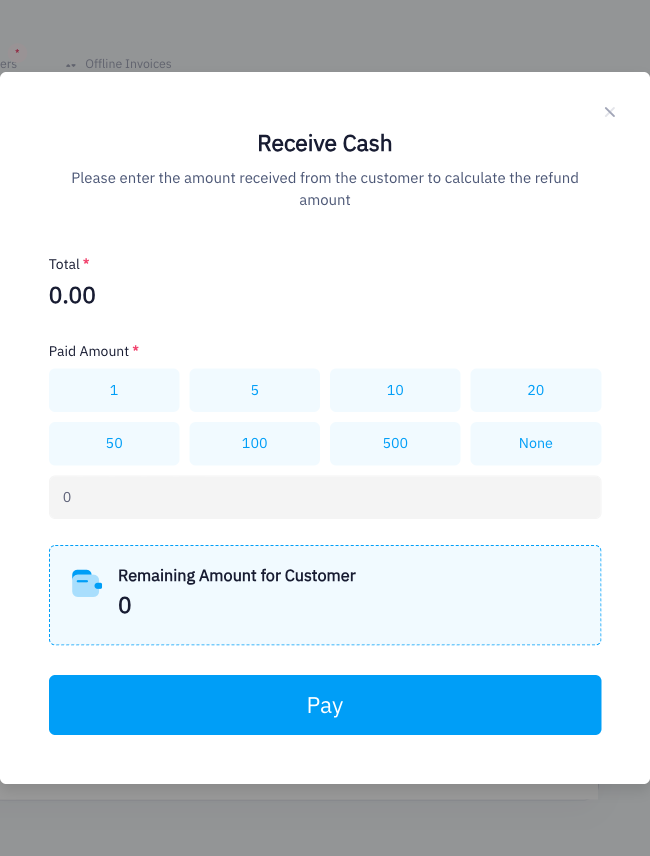
The Paid Amount field becomes active. Enter the amount the customer hands you. Point automatically calculates the change due and displays it below the field.
Step 4: Click Pay
Click the Pay button. Point records the sale, prints or displays the receipt, and shows the change amount prominently for the cashier to return to the customer.
Completing a Card (Network) Payment
Step 1: Add Products to the Cart
Confirm the cart total is correct.
Step 2: Select the Network/Card Radio Button
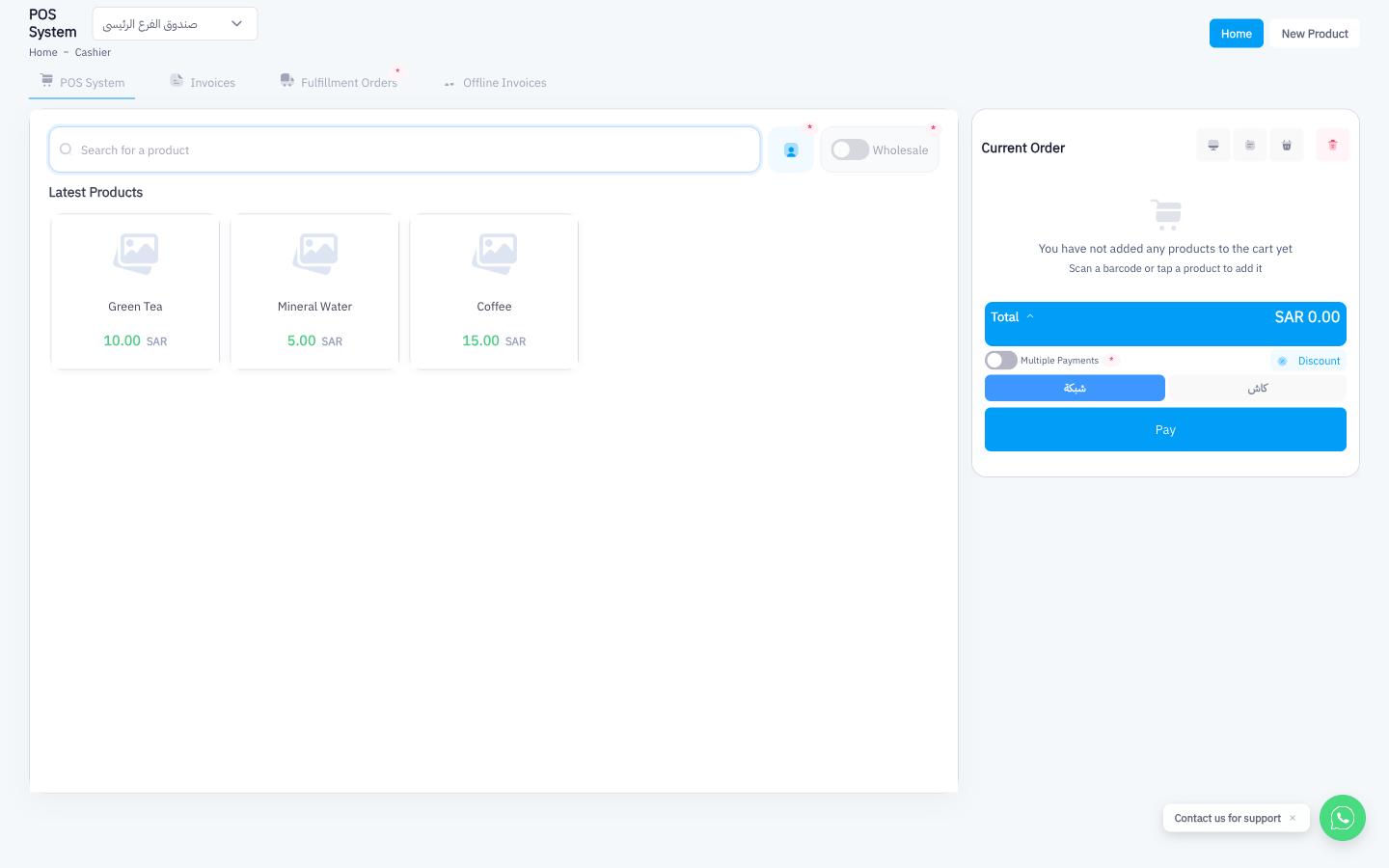
Select شبكة / Network from the payment method radio buttons.
Step 3: Click Pay
Click the Pay button. Point records the sale. Process the payment on your physical card terminal independently — Point does not directly control the terminal hardware.
Completing a Split Payment
Use split payment when a customer wants to pay part of the total in cash and the rest by card (or any combination of available methods).
Step 1: Add Products to the Cart
Confirm the cart total.
Step 2: Enable Multiple Payments
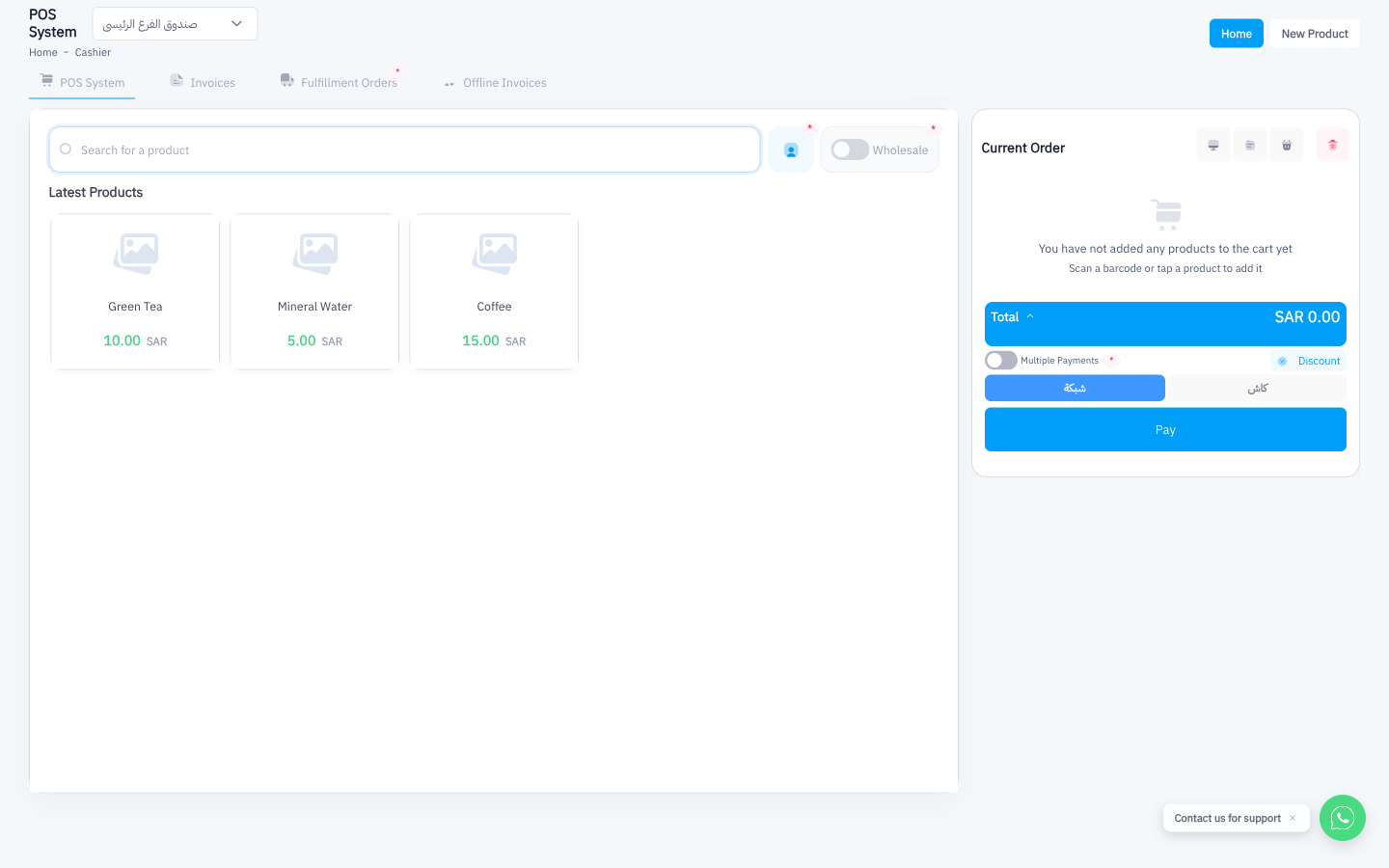
Check the Multiple Payments checkbox (the element with id="multiPayButton") in the cart panel. The payment section expands to show individual amount fields for each payment method.
Step 3: Enter the Cash Amount
In the Cash row, enter the amount the customer is paying in cash.
Step 4: Enter the Card Amount
In the Network/Card row, enter the remaining amount. Confirm that the sum of all entered amounts equals the cart total — Point will warn you if the amounts do not match.
Step 5: Click Pay
Click Pay. Point records both payment methods against the invoice. The receipt shows each method and the amount applied.
You can split across more than two methods if additional payment options are configured by your owner. Always confirm the combined total matches the order total before clicking Pay to avoid shortfalls.
Summary
Point supports cash, card, and split payments from the same cart panel. Cash payments automatically calculate change so cashiers never need to do mental arithmetic. Split payments are enabled with a single checkbox and let customers divide their bill across as many methods as needed.