Offline Mode
Keep selling even when your internet connection is interrupted.
What You'll Learn
- How Point detects and handles a lost internet connection
- How to continue taking sales while offline
- Where offline invoices are stored and how they sync
- What limitations apply during offline operation
Before You Begin
- Your POS is running in a modern browser (Chrome or Edge recommended) on a machine that has previously loaded the Cashier screen — the service worker must have been registered at least once while online
- The register has been opened for the current shift
Step 1: Recognise the Offline Indicator
When Point detects that the internet connection has been lost, the Cashier screen displays an Offline indicator — typically a banner or badge in the POS interface. This tells the cashier that the system is operating from the local service worker cache.
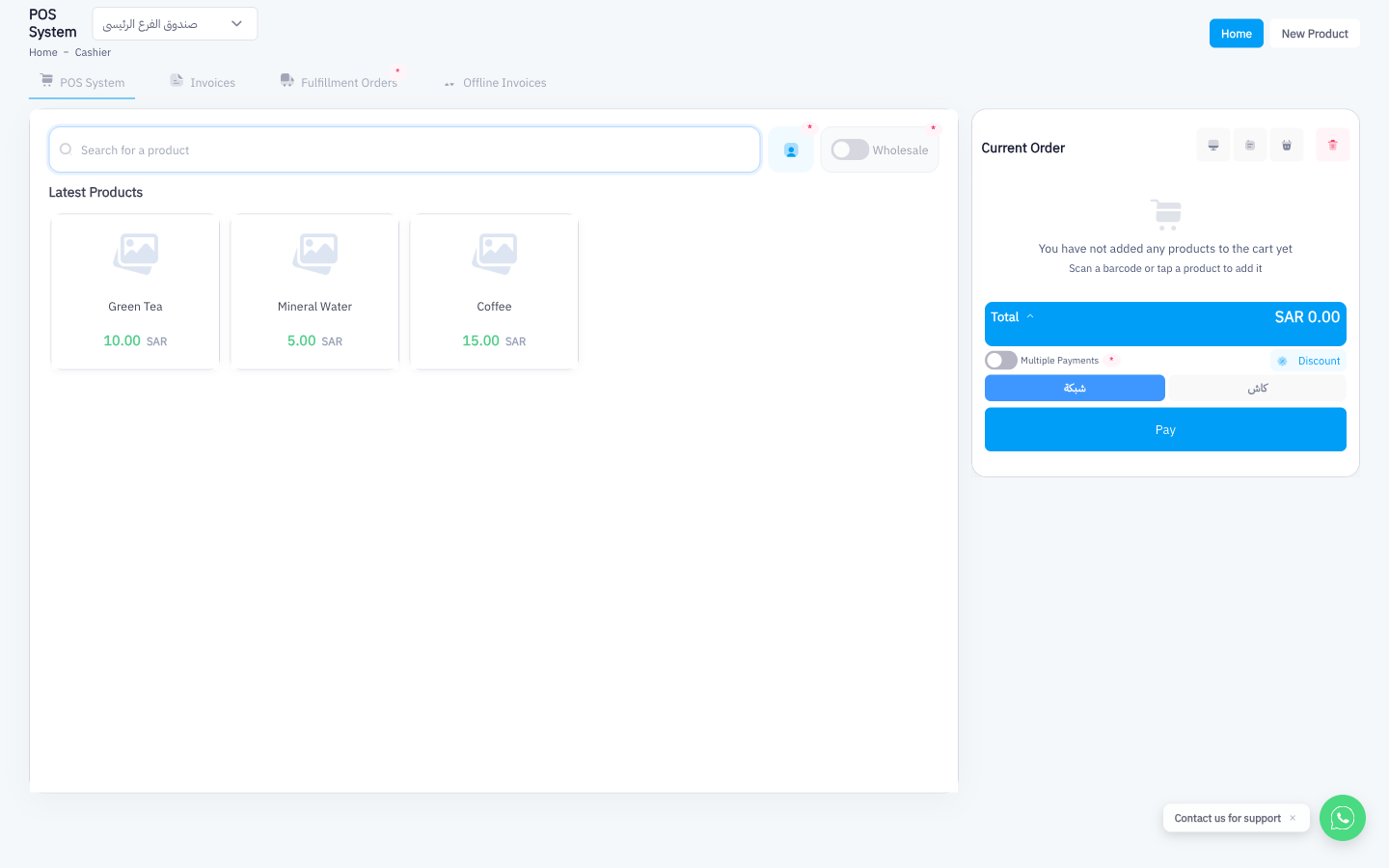
You do not need to take any action when this indicator appears. Point switches to offline mode automatically. Continue serving customers as normal.
Step 2: Continue Selling as Normal
While offline, the POS continues to function for standard sales:
- Barcode scanning and manual product search still work using the locally cached product catalog.
- Adding products to the cart, applying discounts, and selecting payment methods all work normally.
- Click Pay to complete the sale. The invoice is saved locally on the device.
Keep in mind that any products added or stock changes made after you went offline will not be reflected until the connection is restored.
Step 3: Find Offline Invoices in the Offline Invoices Tab
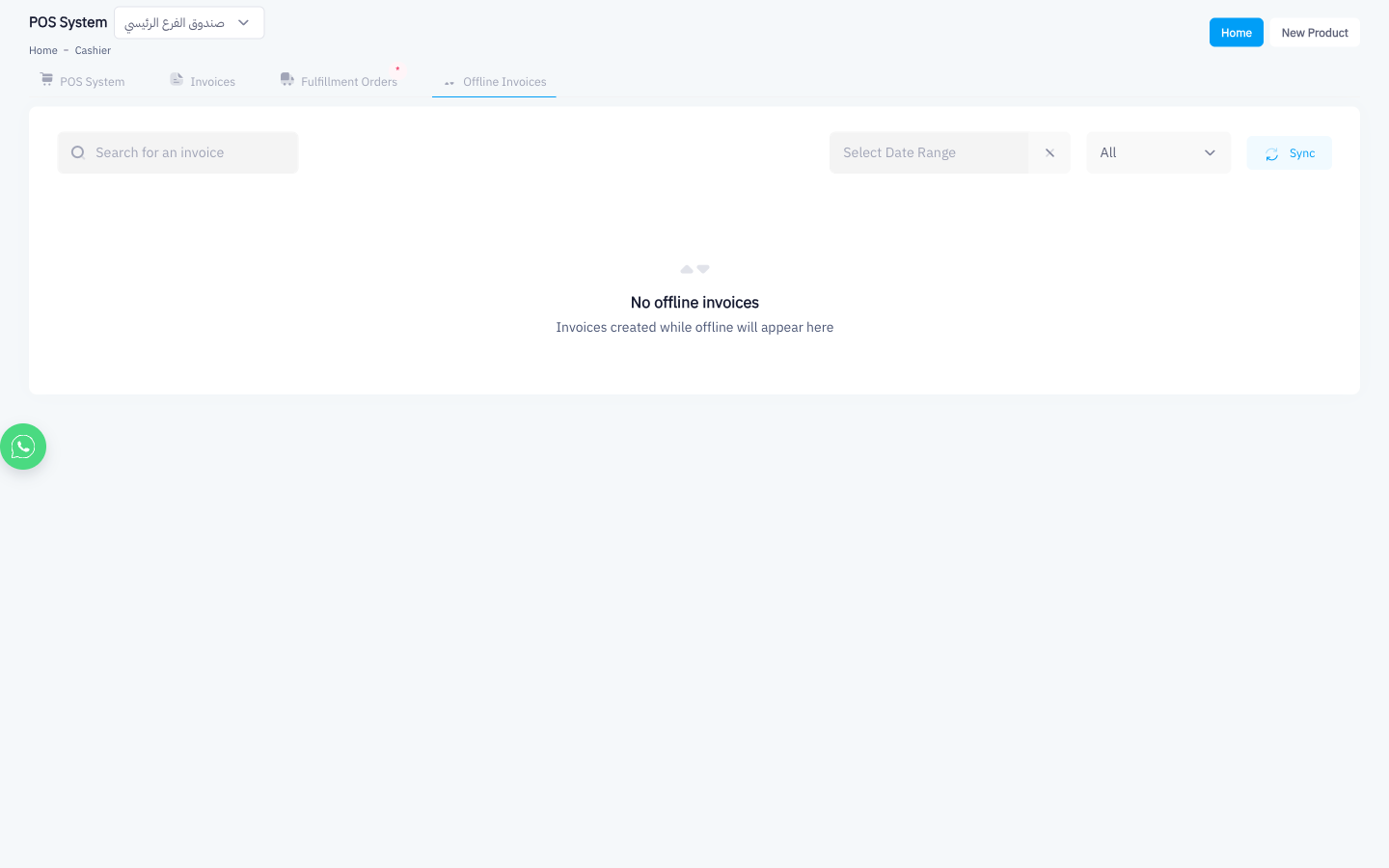
Invoices created while offline are stored on the device and appear in the Offline Invoices tab in the top navigation of the POS screen. Use this tab to review invoices that are waiting to sync.
Step 4: Wait for Automatic Sync When Connection Restores
When internet access returns, Point's service worker detects the reconnection and automatically uploads all pending offline invoices to the server. No cashier action is required.
After sync completes, the offline invoices move from the Offline Invoices tab to the standard Invoices tab and are treated exactly like invoices created while online.
Step 5: Confirm Sync in the Invoices Tab
After reconnection, open the Invoices tab and confirm that the offline invoices appear with their correct totals and invoice numbers. If any invoice failed to sync, it remains in the Offline Invoices tab with an error indicator — contact support if invoices are stuck.
ZATCA e-invoices for sales made during offline mode are submitted to the ZATCA portal in batch once the device is back online. This is compliant with ZATCA's offline-mode provisions. Ensure devices reconnect within the same business day wherever possible to keep submissions timely.
Offline Mode Limitations
| Feature | Available Offline |
|---|---|
| Standard sales (cash / card) | Yes |
| Barcode scanning | Yes (cached catalog) |
| New products added to catalog while offline | No — reflected after sync |
| Real-time inventory deduction | No — applied on sync |
| Returns / credit notes | No — requires server connection |
| Customer lookup | No — requires server connection |
| ZATCA submission | No — submitted on reconnect |
Summary
Point uses a service worker to keep the POS running through internet outages. Cashiers see an offline indicator and can continue taking sales without interruption. All offline invoices are stored locally and sync automatically the moment connectivity returns — no manual steps required.