Submitting Invoices to ZATCA
After ZATCA Phase 2 is activated, every invoice is submitted to ZATCA automatically in real-time with no manual steps required.
What You'll Learn
- How automatic ZATCA submission works after activation
- The difference between cleared (standard) and reported (simplified) invoices
- How to check the ZATCA submission status on an invoice
Before You Begin
- ZATCA Phase 2 must be activated (see ZATCA E-Invoicing Setup)
- Your company VAT number must be saved in Settings > Main
Step 1: Make a Sale at POS
Process a sale at the POS as you normally would. For a standard (B2B) invoice, attach a customer who has a VAT number before completing the sale.
To issue a standard (B2B) invoice, you must select the customer from the customer search field before pressing Pay. If no customer is attached, Point issues a simplified (B2C) invoice instead.
Step 2: Invoice is Generated
When the sale is completed, Point generates the invoice automatically and assigns it a sequential ZATCA invoice number.
Step 3: ZATCA QR Code Appears on the Invoice
The printed receipt and the digital invoice both contain a ZATCA QR code. This QR code encodes the invoice data (seller name, VAT number, date, total, VAT amount) as required by ZATCA Phase 2.
Step 4: Attach a Customer for Standard Invoices (B2B)
For business customers who require a standard (cleared) invoice:
- Before completing the sale, search for the customer in the Customer field at the POS
- Confirm the customer record has a VAT number and full address
- Complete the sale — Point will automatically generate a standard invoice
Step 5: Invoice is Submitted to ZATCA Automatically
- Standard invoices (B2B with customer VAT): submitted to ZATCA in real-time for clearance. ZATCA returns a clearance stamp embedded in the invoice.
- Simplified invoices (B2C, no customer VAT): reported to ZATCA in batch. No real-time clearance is needed for simplified invoices.
No manual upload or action is required from the cashier or owner.
Step 6: Check ZATCA Submission Status
To verify that an invoice was submitted successfully:
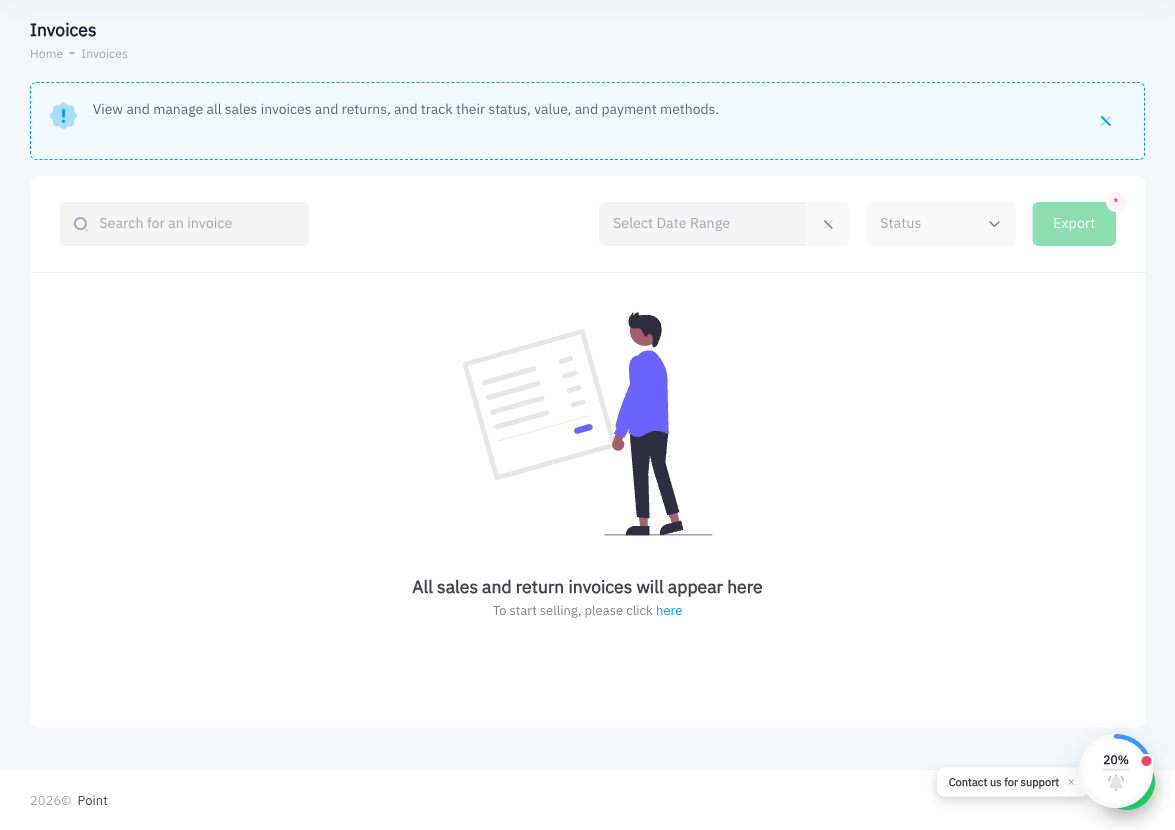
- Go to Invoices in the left sidebar
- Find and click the invoice in question
- In the invoice detail view, look for the ZATCA status indicator
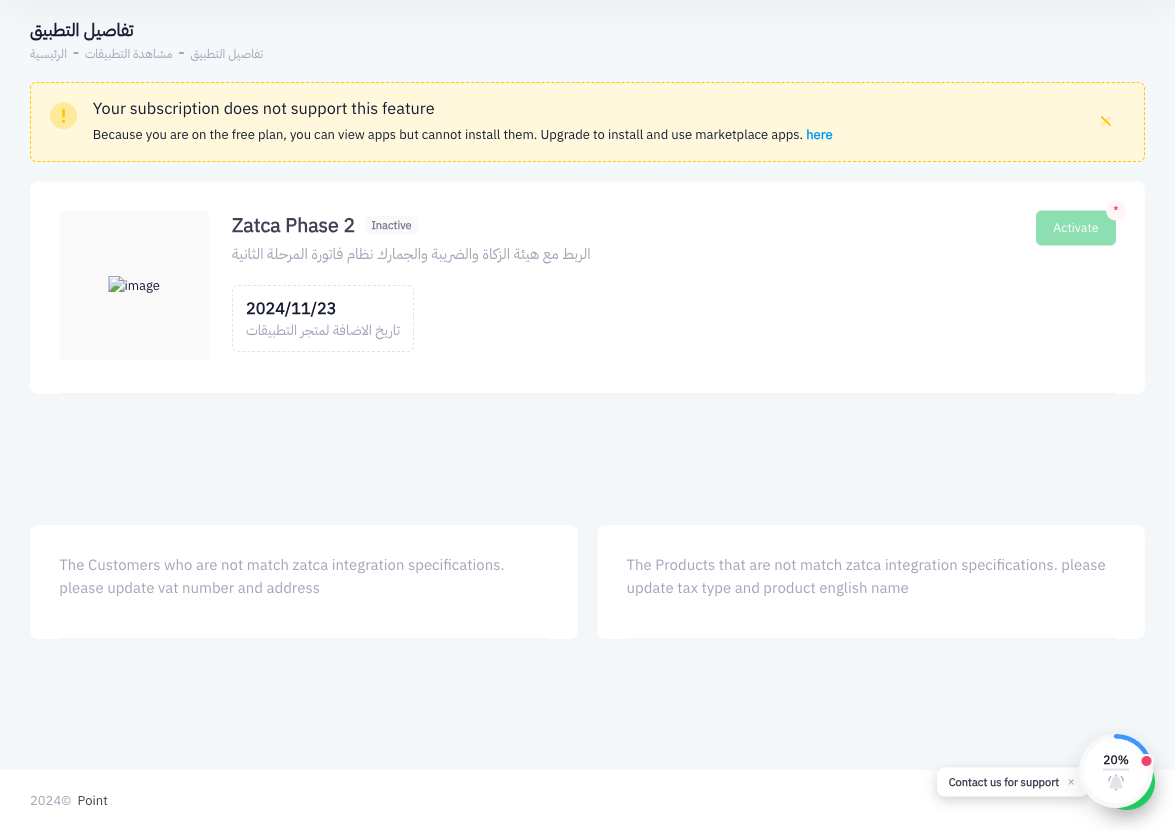
A successful status confirms the invoice has been cleared or queued for batch reporting with ZATCA.
Summary
Once ZATCA Phase 2 is activated on Point, invoice submission is fully automatic. Every completed sale generates an invoice with a ZATCA QR code. Standard (B2B) invoices are cleared in real-time when a customer with a VAT number is attached; simplified (B2C) invoices are reported in batch. You can verify submission status on each invoice's detail page. No manual uploads or additional steps are needed for day-to-day operations.