ZATCA E-Invoicing Setup
Activate ZATCA Phase 2 compliance on Point by adding your VAT number, enabling the Marketplace app, and preparing your products and customer records.
What You'll Learn
- How to add your company VAT number to Point
- How to activate the ZATCA Phase 2 app from the Marketplace
- What product and customer data is required before going live
Before You Begin
- You need owner access with the متقدم (Advanced) plan
- Have your company's 15-digit VAT number ready
ZATCA Phase 2 activation requires the متقدم (Advanced) plan. Upgrade your subscription before starting this process.
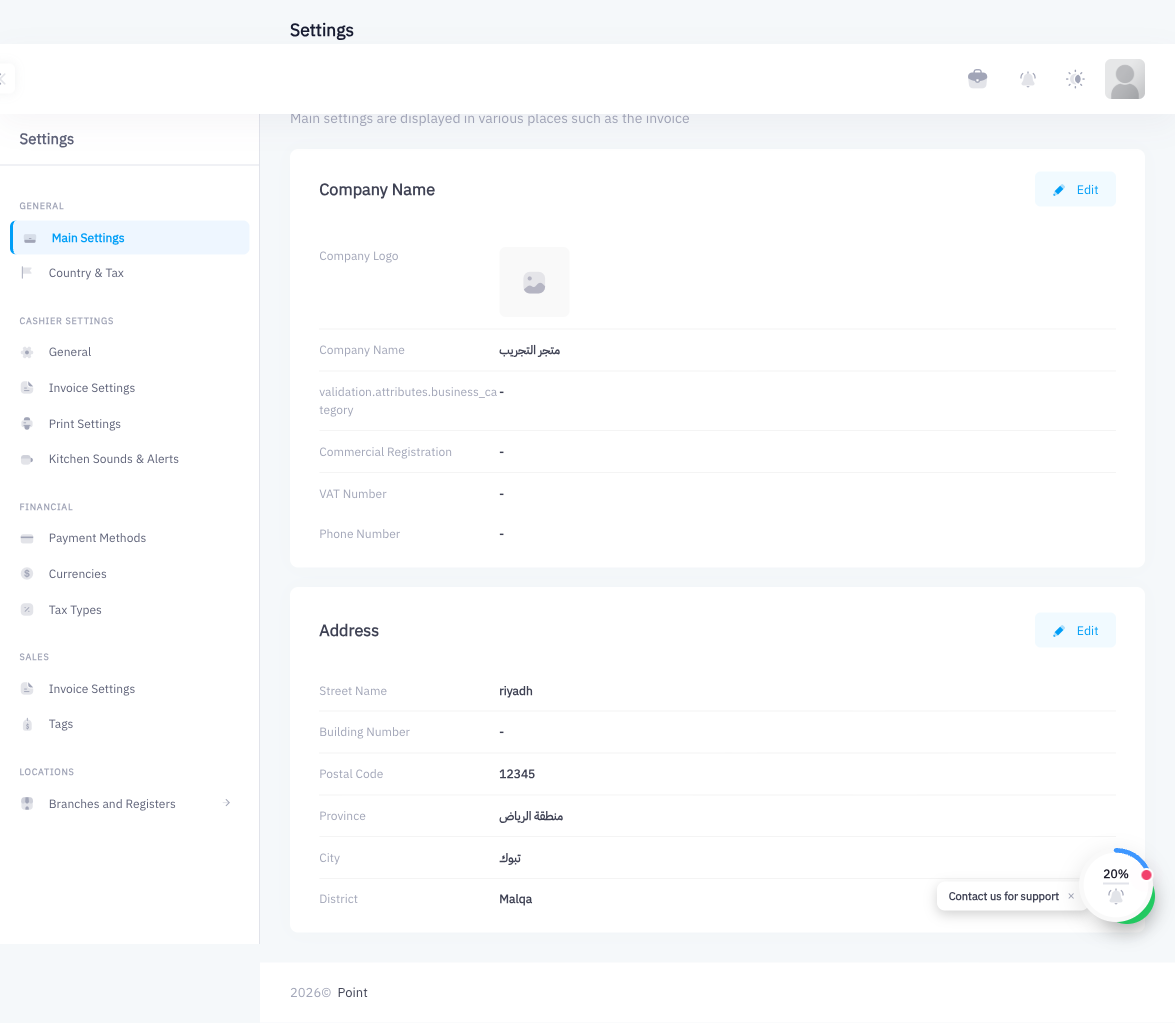
Step 1: Go to Settings > Main
From the left sidebar, click Settings, then click Main.
Step 2: Edit Company Info
Find the Company section at the top of Main settings and click Edit (or click directly on the company name field).
Step 3: Enter Your VAT Number
Type your 15-digit VAT number in the VAT Number field. This number appears on all invoices and is sent to ZATCA with every submission.
Step 4: Save
Click Save to store the company VAT number.
Step 5: Go to Marketplace
From the left sidebar, click Marketplace.
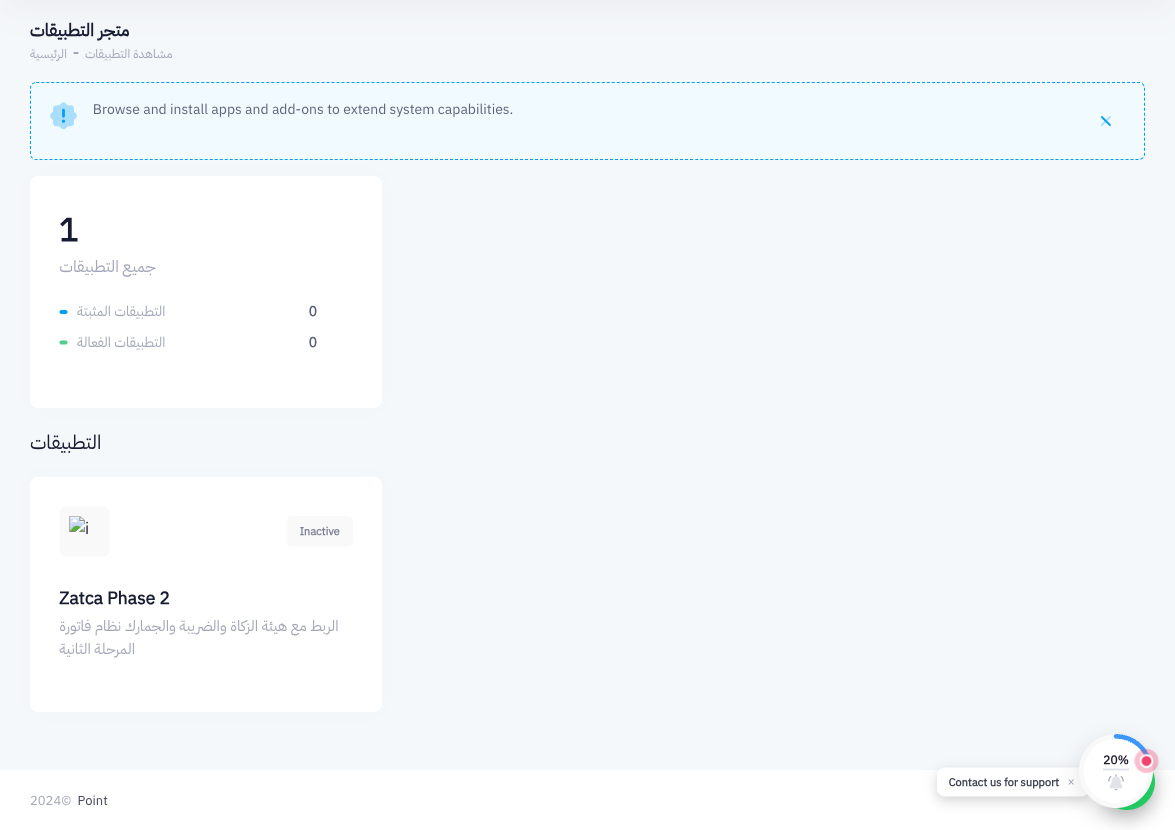
Step 6: Find the Zatca Phase 2 App
In the Marketplace, locate the Zatca Phase 2 app card.
Step 7: Click Activate
Click the Activate button on the Zatca Phase 2 app. You must be on the Advanced plan for this button to be enabled.
Step 8: Follow the Activation Wizard
Point will walk you through an activation wizard that registers your device with the ZATCA portal. Follow each step in the wizard. This process generates a cryptographic certificate for your POS device — keep your account credentials available in case the wizard requests them.
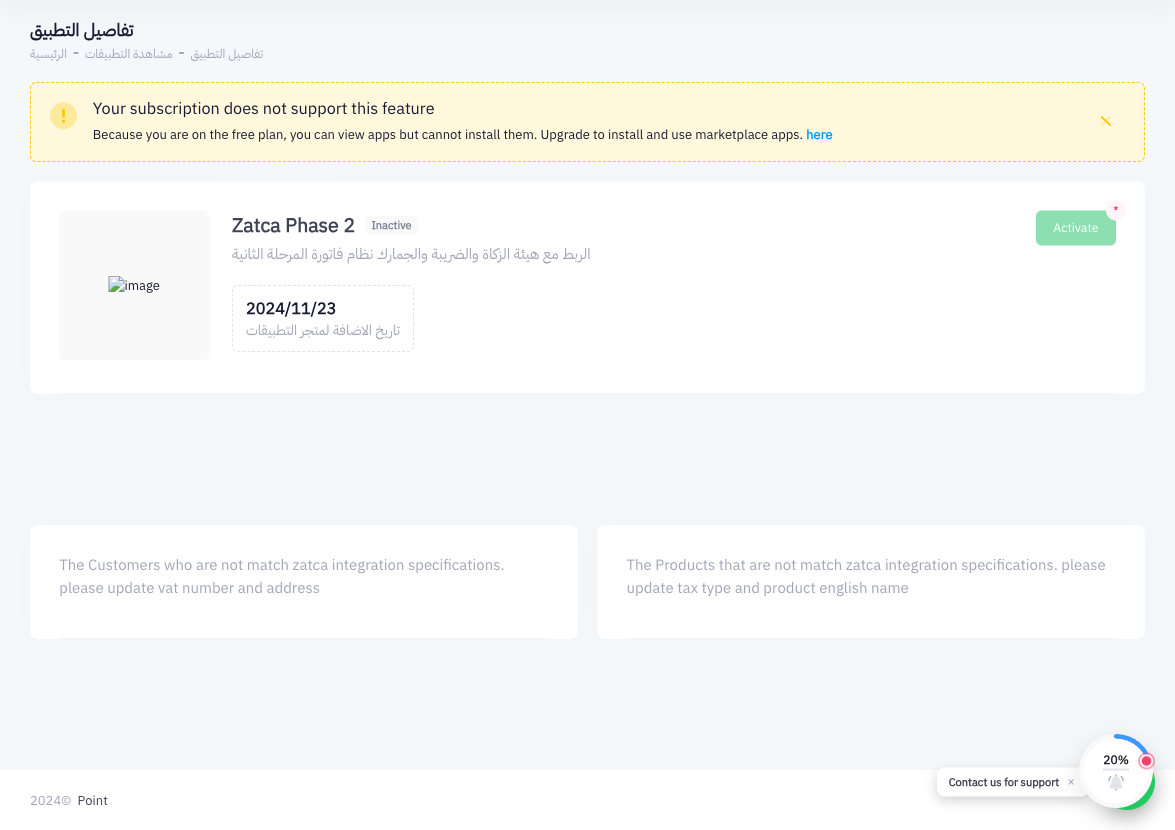
Step 9: Review Products
After activation, go to Products and audit your product list:
- Every product must have a Tax Type set (typically ضريبة القيمة المضافة 15%)
- Every product must have an English Name — ZATCA requires product descriptions in English
Products missing either field may cause invoice submission errors.
Step 10: Review Customer Records
For B2B customers who should receive standard invoices:
- Every B2B customer must have a VAT Number
- Every B2B customer must have a complete address (Street Name, Building Number, Postal Code, City, District)
Go to Customers and update any incomplete records before processing B2B sales.
Summary
ZATCA Phase 2 setup has four parts: add your company VAT number in Settings, activate the Zatca Phase 2 app from the Marketplace (Advanced plan required), ensure all products have a tax type and English name, and ensure B2B customer records have a VAT number and full address. Once activated, every invoice receives a ZATCA QR code and is submitted automatically.