Understanding Invoice Types
Point generates invoices automatically for every sale and return, with built-in ZATCA compliance for the Saudi market.
What You'll Learn
- The difference between a Sales invoice and a Return invoice
- When Point issues a Simplified vs. Standard invoice
- Where to find all invoices after a sale
Before You Begin
- No configuration is required to start receiving invoices — they are generated automatically with every POS transaction
- For ZATCA-compliant standard invoices, see ZATCA E-Invoicing Setup
Invoice Types
Point generates two types of invoices:
Sales Invoice Created automatically every time a cashier completes a sale at the POS. The sales invoice records all items sold, their quantities, prices, VAT, and the total amount paid. Every sale produces exactly one sales invoice.
Return Invoice (Credit Note) Created when a cashier processes a return or refund at the POS. The return invoice references the original sales invoice and records the items returned and the amount refunded.
Simplified vs. Standard (ZATCA)
Under Saudi ZATCA regulations, invoices fall into one of two categories:
Simplified Invoice (B2C) Issued when no customer VAT number is attached to the sale. Suitable for retail transactions with individual consumers. Simplified invoices are reported to ZATCA in batch (quarterly for Phase 2).
Standard Invoice (B2B) Issued when the customer record attached to the sale includes a VAT number and a full address. Required for business-to-business transactions. Standard invoices are submitted to ZATCA in real-time (cleared) when ZATCA Phase 2 is active.
To issue a standard invoice, attach a customer who has a VAT number and complete address before completing the sale at the POS.
Where to Find Invoices
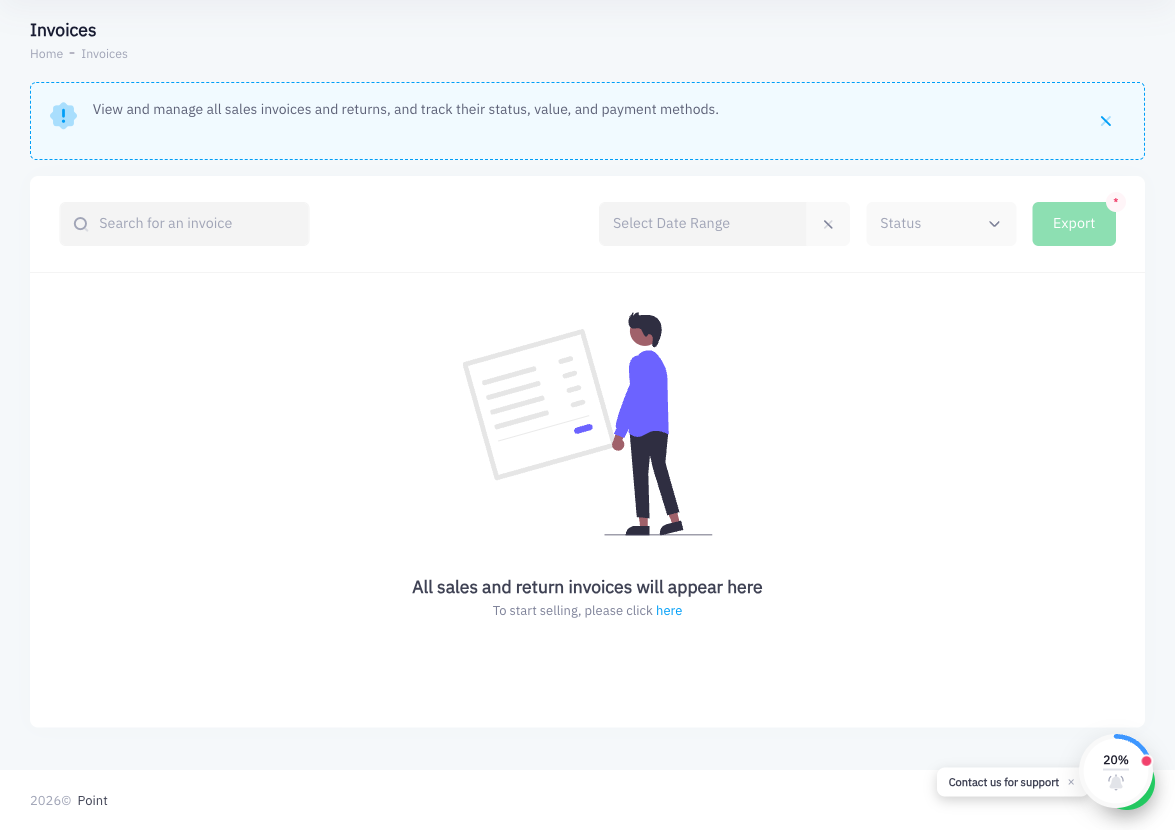
From the Invoices section: Go to Invoices in the left sidebar. Use the tabs at the top to filter:
- All — all sales and return invoices
- Sale — sales invoices only
- Return — return invoices only
Use the Search for invoice field or the Date Range filter to find a specific invoice. Click any row to open the full invoice detail, which includes the ZATCA QR code when Phase 2 is active.
From the POS: Inside the POS screen, there is an Invoices tab where you can see recent transactions for the current register session.