Setting Up Your Register
A register is a single POS terminal (till) within a branch. You can have multiple registers in one branch — one per checkout counter, for example.
What You'll Learn
- What a register is and how it relates to a branch
- How to add a new register to an existing branch
- Where the register name shows up in the POS and in reports
Before You Begin
- You have at least one branch set up (see Setting Up Your Branch)
- You're logged in as the account owner
Only owners and admins can add or edit registers. Cashiers select their register when they open a session on the POS.
Step 1: Go to Settings > Branches and Registers
From the sidebar, click Settings then Branches and Registers (/settings/branches).
Step 2: Select a Branch
In the left panel, click the branch where you want to add a new register. The right panel will load that branch's details.
Step 3: Click the Registers Tab
In the right panel, click the Registers tab. You'll see a list of any registers already created for this branch (there will be at least one if you named one during branch creation).
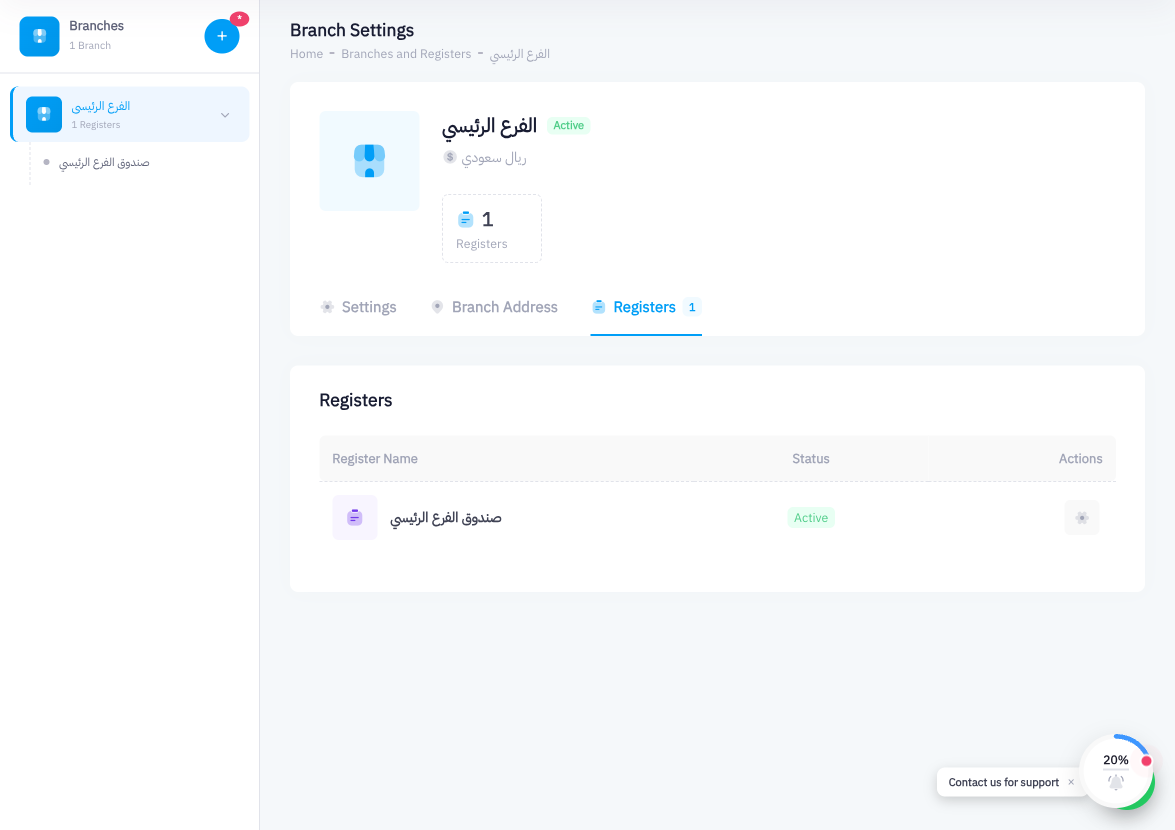
Step 4: Click Add Register
Click the Add Register button to open the add-register form.
Step 5: Choose the Branch and Enter a Register Name
The form has two fields:
- Branch — A dropdown pre-selected to the current branch. You can change it if you want to add a register to a different branch from here.
- Register Name — Give the register a name that makes sense to your staff, like "Counter 2", "Express Lane", or "Back Office Till". This name appears in the top bar of the POS screen when a cashier is logged in, and it's used to filter data in reports.
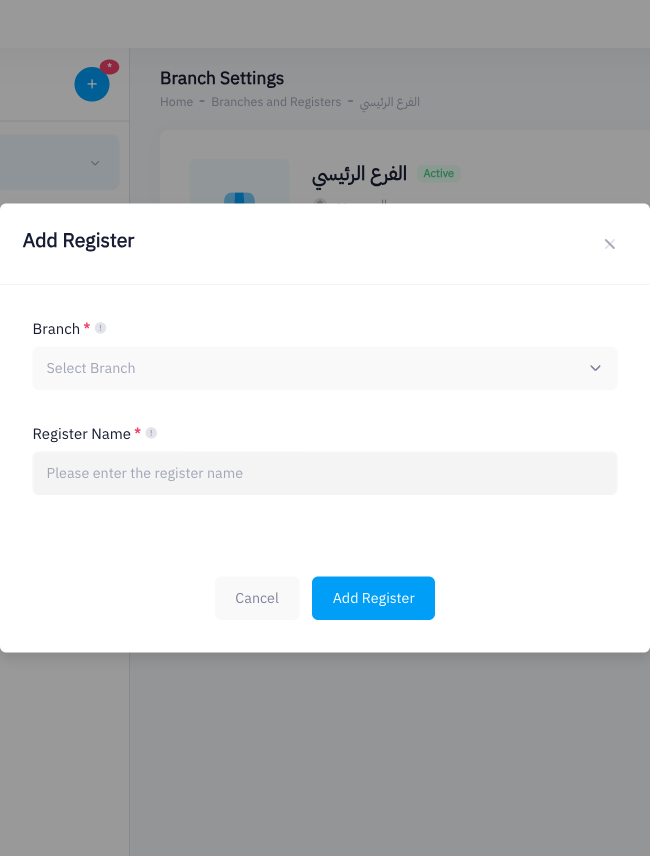
Step 6: Click Add Register
Click Add Register to save. The new register will appear in the list on the Registers tab.
Summary
Adding a register is a 30-second task. Navigate to the branch, open the Registers tab, click Add Register, name it, and save. Every register you create becomes a selectable terminal in the POS — cashiers choose their register when they start a shift, and all sales from that session are tagged to that register in your reports.