Creating Your First Business
After logging in for the first time, you'll want to fill in your company details — especially your VAT number, which is required for ZATCA-compliant e-invoicing.
What You'll Learn
- Where to find the company settings
- Which fields matter most (VAT number, commercial registration)
- How to fill in your registered address
Before You Begin
- You're logged in as the account owner
- You have your Commercial Registration (CR) number and VAT number on hand
These settings are only accessible to the account owner and admins with the right permissions. Cashiers don't need to touch this section.
Step 1: Go to Settings > Main
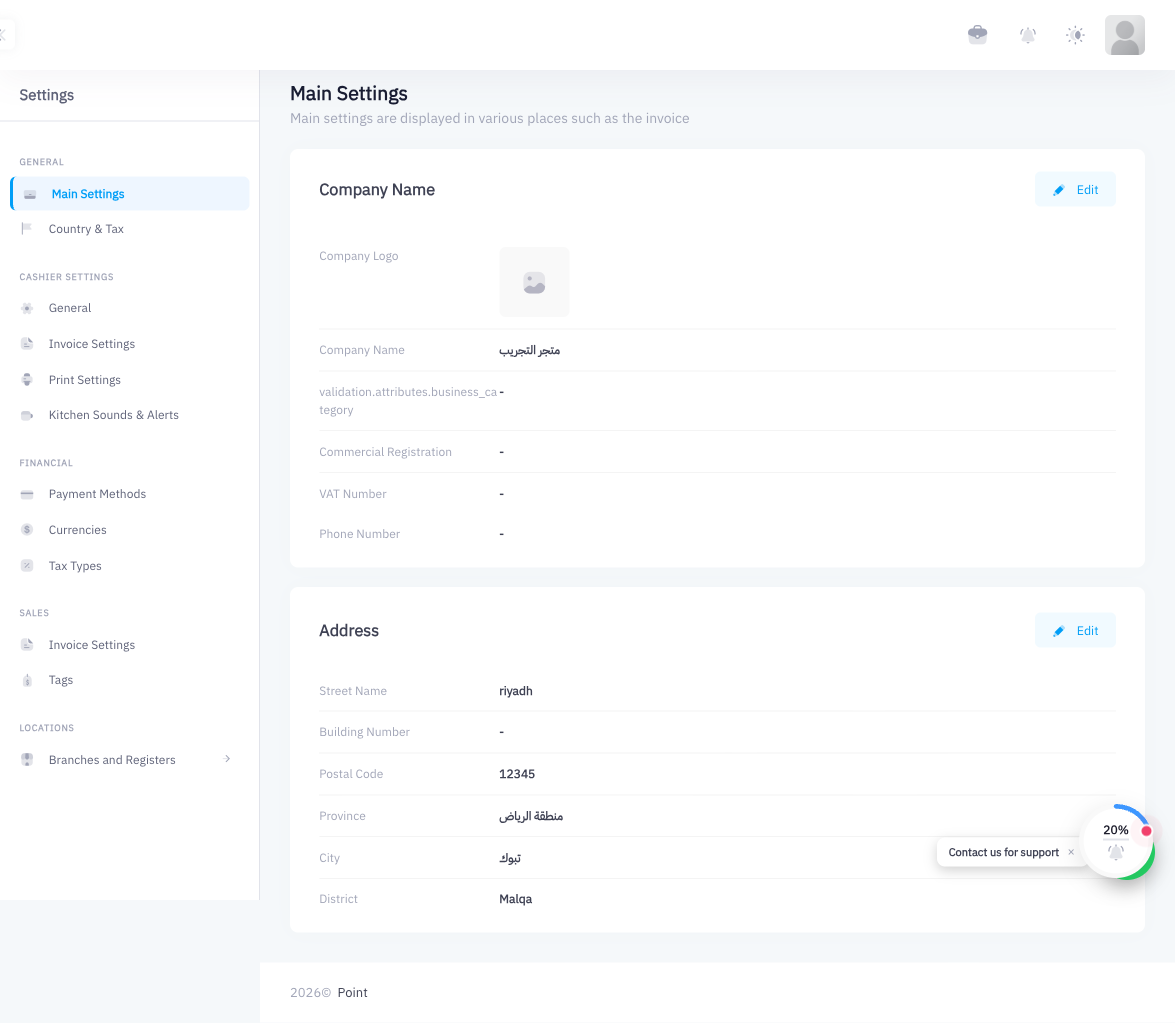
From the top navigation or the sidebar, click Settings and then select Main. The URL will be /settings/main.
The page is divided into sections listed in the left navigation panel: Main Settings, Country & Tax, Cashier General, and more. You'll work in the Main Settings section first.
Step 2: Open the Company Info Edit Drawer
In the Main Settings section, find the company info card. Click the Edit button (pencil icon) to open the edit drawer on the right side of the screen.
Step 3: Fill In Your Company Details
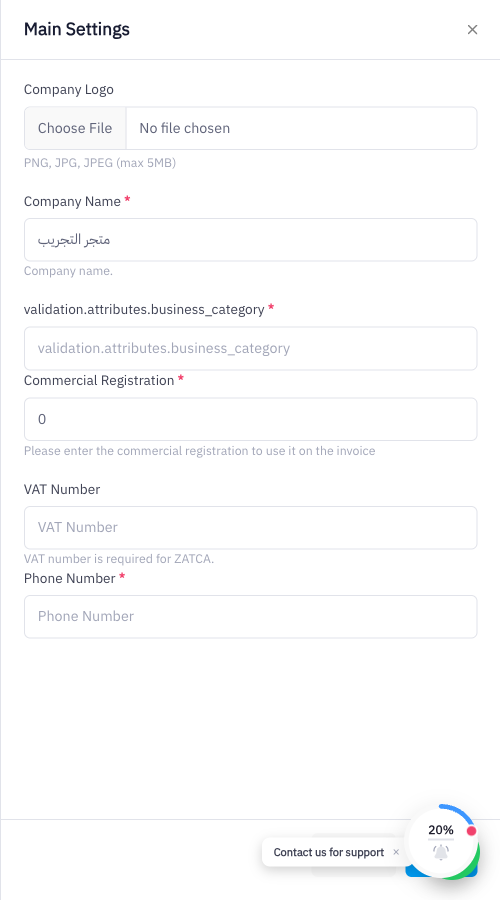
The drawer has two groups of fields:
Company Identity:
- Company Logo — Upload a PNG, JPG, or JPEG file up to 5 MB. This logo appears on printed and digital invoices.
- Company Name — Your registered business name.
- Business Category — The type of business (should match what you chose during registration).
- Commercial Registration — Your Saudi CR number.
- VAT Number — Your 15-digit VAT registration number. This is required for ZATCA e-invoicing. Invoices issued without a VAT number will not be ZATCA-compliant.
- Phone Number — Your business contact number.
Fill in all the fields, then click Save.
If your business is not VAT-registered, you can leave the VAT Number blank, but ZATCA simplified invoices (B2C) require a valid VAT number to include the QR code. Register for VAT with ZATCA before going live if you need full compliance.
Step 4: Save Company Details
Click Save in the edit drawer. A success notification will confirm the update.
Step 5: Edit Your Business Address
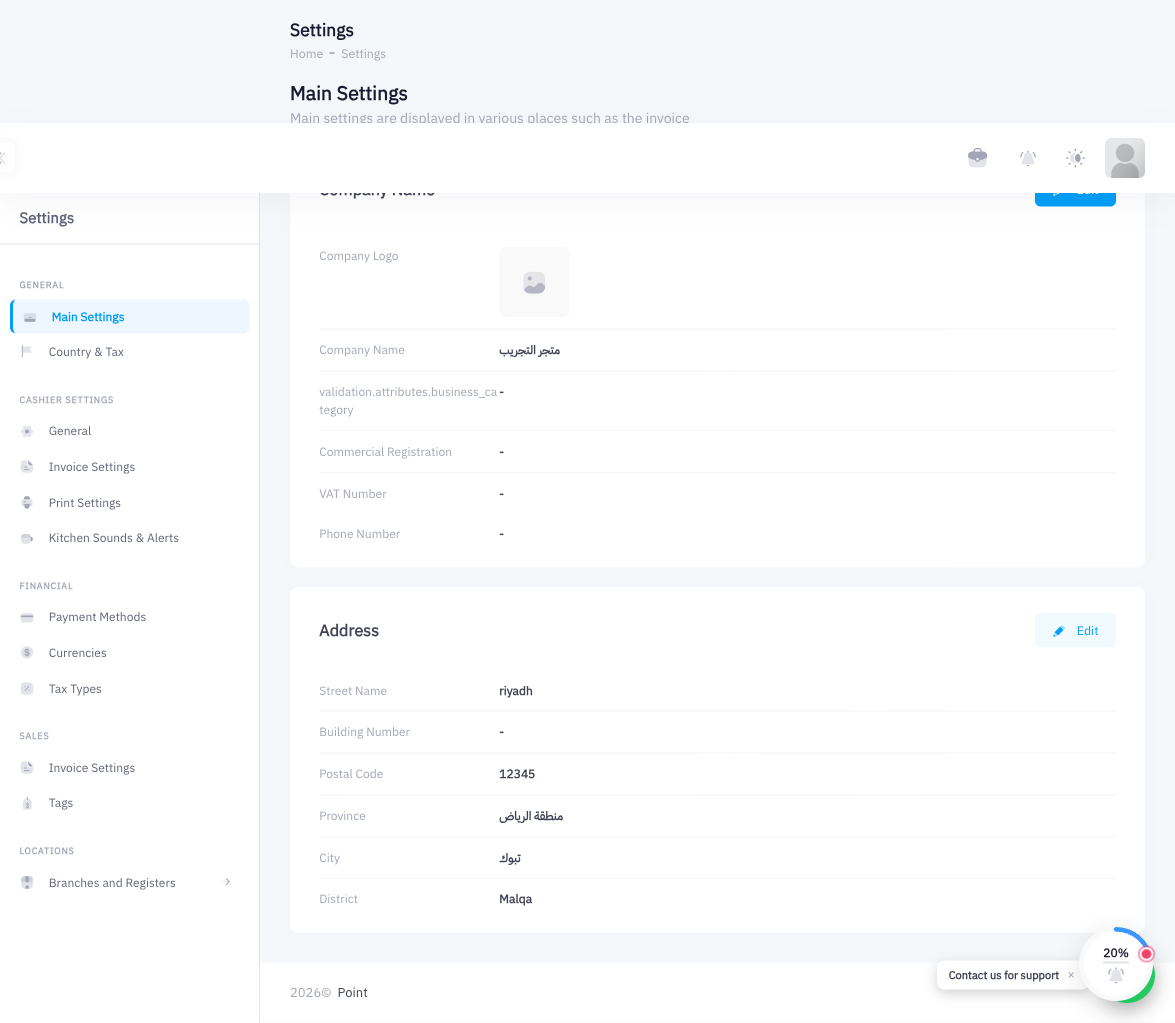
Scroll down (or click Company Address in the left nav) to find the address section. Click its Edit button to open the address drawer.
Step 6: Fill In Your Address
Saudi ZATCA invoices must include a structured address. Fill in all fields:
- Street Name
- Building Number
- Postal Code
- Province — Select your region from the dropdown (e.g., Riyadh Region, Makkah Region).
- City
- District — The neighbourhood or district name.
Step 7: Save the Address
Click Save. Your company profile is now complete.
Summary
Filling in your company details and address is a one-time task that feeds into every invoice you issue. The VAT number in particular is critical — Point uses it to generate the QR code on ZATCA-compliant invoices. Take five minutes now to get everything right so your invoices are correct from day one.