Account Setup & Registration
This tutorial walks you through creating your Point account in two quick steps — your personal info first, then your business details.
What You'll Learn
- How to navigate to the registration page
- What information you need for each registration step
- How to log in after registering
Before You Begin
- A mobile number with a Saudi (+966) country code
- Your business name and category
- An email address you'll use to log in
Registration creates your owner/admin account. You're the only one who needs to go through this flow — you'll add cashiers and managers from the Employees section later.
Step 1: Go to the Registration Page
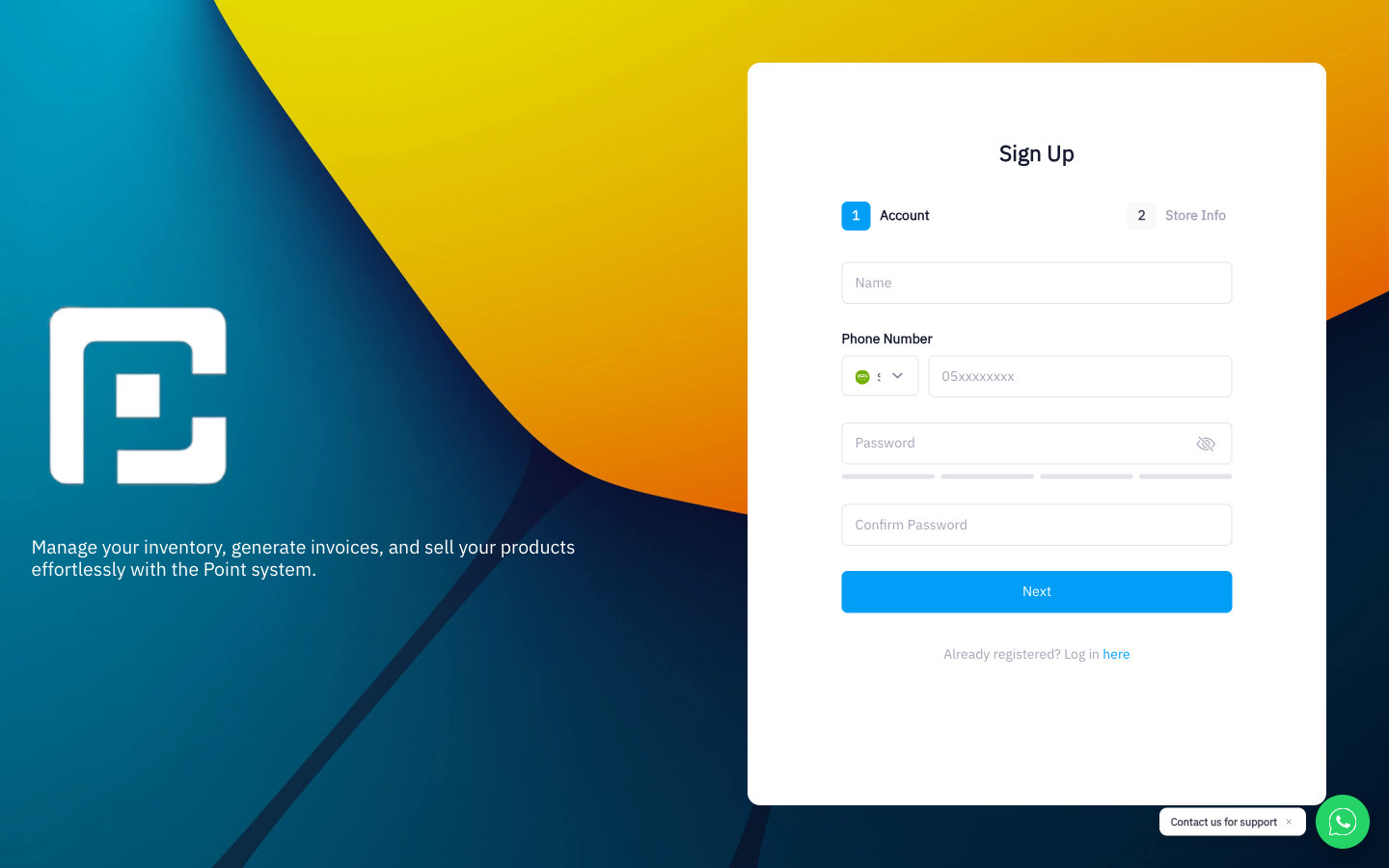
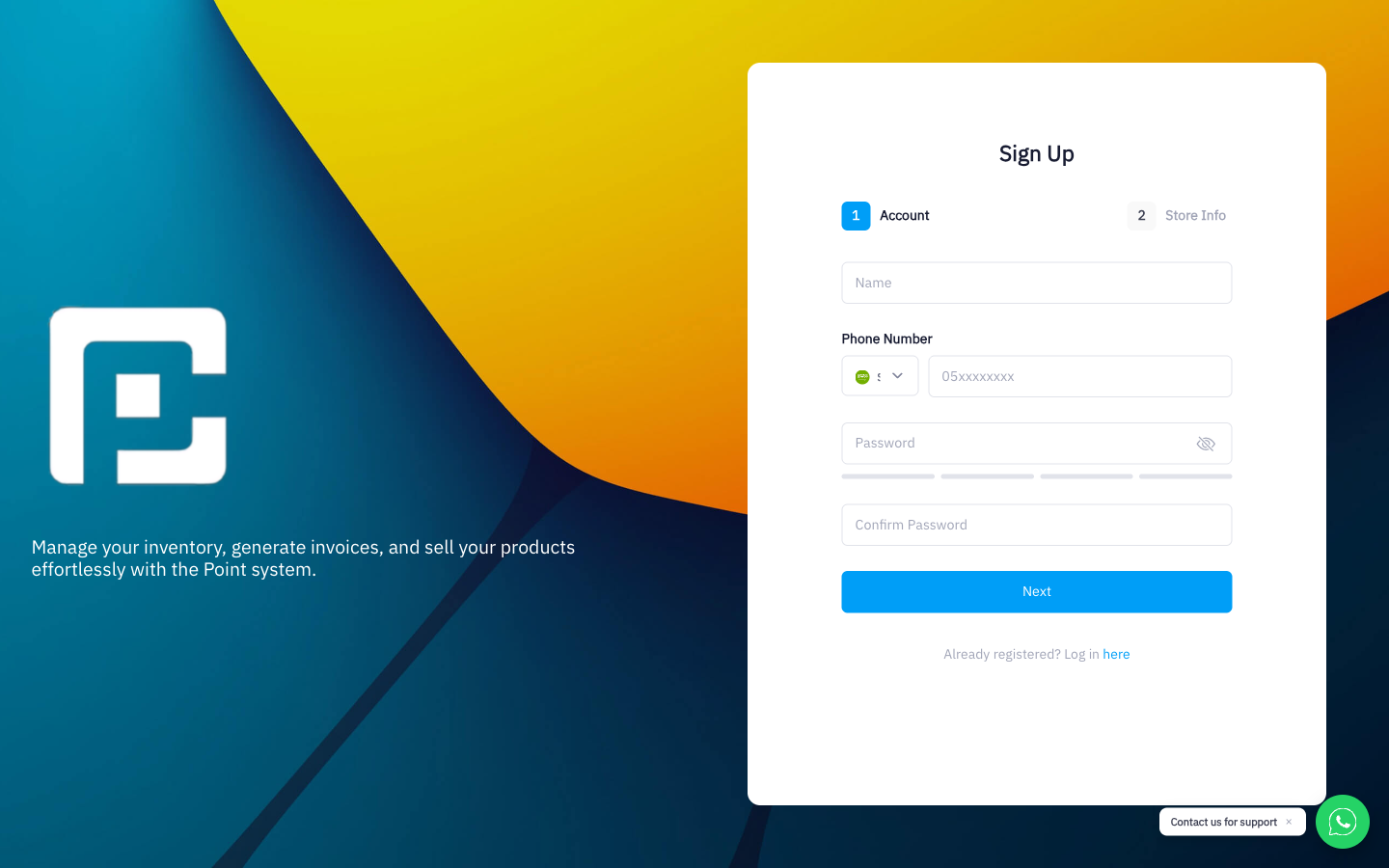
Open your browser and navigate to /register. You'll land on a two-step registration form. The progress indicator at the top shows you which step you're on.
Step 2: Fill In Your Account Info (Step 1 of 2)
The first step collects your personal account details:
- Full Name — Your name as the account owner.
- Mobile Number — The country code defaults to Saudi Arabia (+966). Enter the rest of your number without the leading zero.
- Password — Choose a strong password (mix of letters, numbers, and symbols).
- Confirm Password — Re-enter the same password to confirm.
Once all four fields are filled, click Next to move to Step 2.
Step 3: Fill In Your Business Info (Step 2 of 2)
The second step captures your business details:
- Business Name — The trading name of your store or company.
- Business Type — Pick the category that best describes your business from the dropdown (Retail, Electronics, Fashion, Grocery, Beauty, Pharmacy, and more).
- Country — Defaults to Saudi Arabia. Leave it as is unless you're registering from another country.
- Email — This is the email address you'll use to log in. Make sure it's one you have access to.
Click Register to submit. Point will create your account and redirect you to the login page.
Step 4: Log In
After registration you'll see the message: "You have registered successfully, please login."
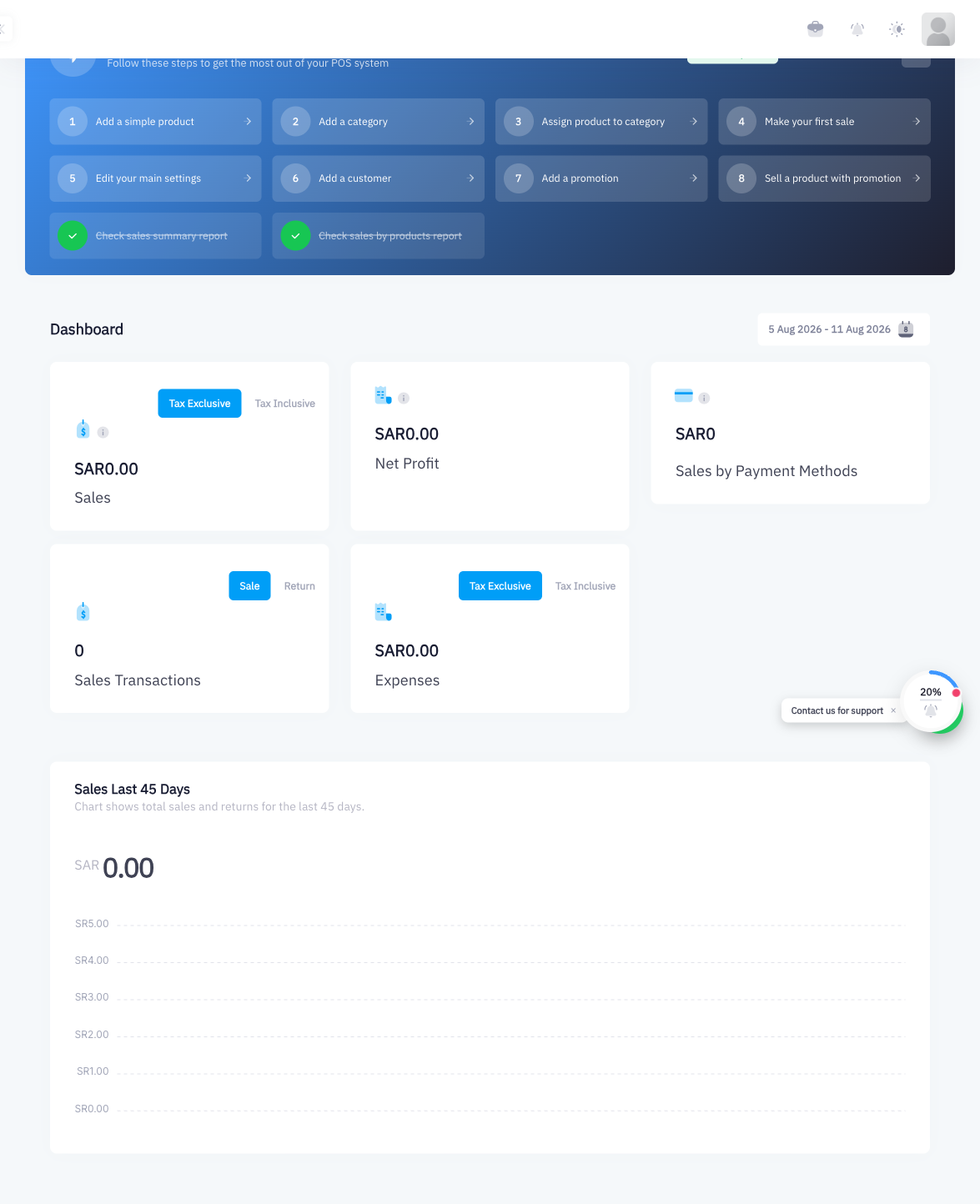
Enter the email and password you chose during registration and click Login. You'll be taken directly to your dashboard.
Summary
Registration takes under two minutes. Step 1 captures your personal credentials (name, mobile, password) and Step 2 captures your business details (name, type, country, email). After submitting, you log in with that email and password — the mobile number is not used for login.