Roles & Permission Groups
Control what each employee can see and do in Point by creating permission groups and assigning them to staff accounts.
What You'll Learn
- How to view and create permission groups
- How to toggle individual permissions per module
- How to assign a permission group when creating an employee
Before You Begin
- You need owner access to manage permission groups
- The default group مدير (Manager) has full access and cannot be deleted
Creating custom permission groups beyond the default Manager group requires the ابتدائي (Starter) plan.
Step 1: Go to Employee Permissions
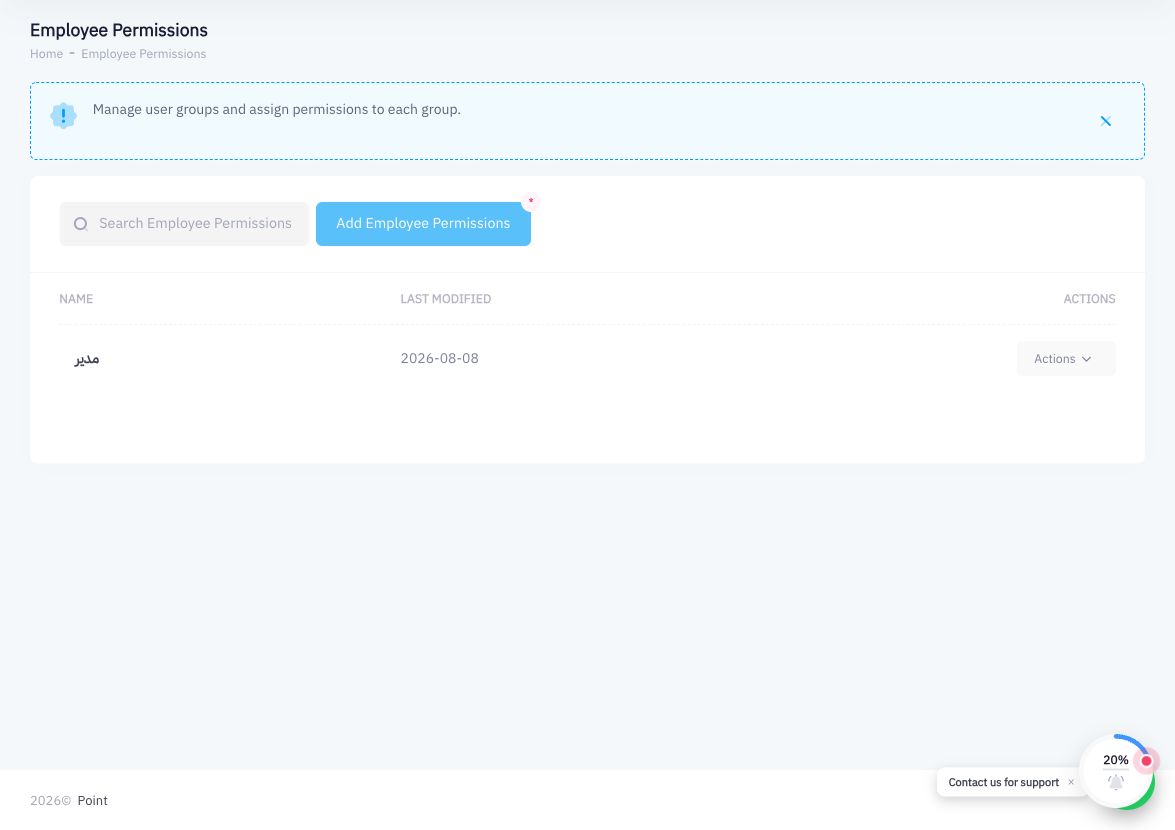
From the left sidebar, click Employee Permissions (URL: /groups). You will see a list of existing permission groups, including the default مدير (Manager) group.
Step 2: View an Existing Group
Click any group to open it and review its permissions. The Manager group has all permissions enabled. Use this as a reference when creating more restricted groups.
Step 3: Click Add Employee Permissions
Click the Add Employee Permissions button to create a new group.
Step 4: Enter the Group Name
Type a descriptive name for this group (for example, "Cashier", "Inventory Staff", or "Branch Supervisor").
Step 5: Toggle Individual Permissions per Module
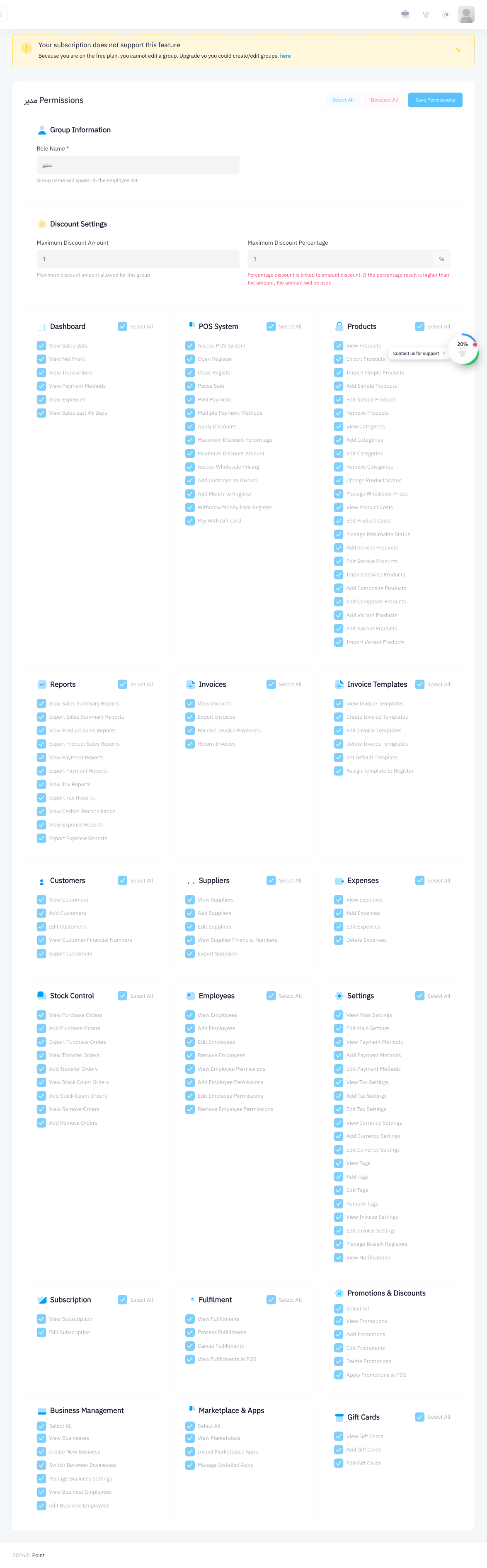
The permission editor shows a list of modules (Products, Invoices, Customers, Reports, Promotions, Expenses, Employees, Settings, etc.). For each module you can enable or disable:
- View — employee can see this section
- Create — employee can add new records
- Edit — employee can modify existing records
- Delete — employee can delete records
Toggle off any capabilities the role should not have. For example, a Cashier might have View and Create on Invoices, but no access to Reports or Settings.
Step 6: Save
Click Save to create the permission group.
Step 7: Assign the Group to Employees
When adding or editing an employee account (see Employee Branch Assignment), select this group from the Permission Group dropdown. The employee's access will match the group's configured permissions.
Summary
Permission groups let you define exactly what each role in your business can access. The default مدير (Manager) group has full access. For cashiers, inventory staff, or other roles with limited responsibilities, create a custom group and toggle off any sections they should not access. Assign the group when creating the employee account. Custom groups require the Starter plan.