Employee Branch Assignment
Control which branches an employee can access by configuring their permitted branches during account setup or editing.
What You'll Learn
- How to create an employee account and assign a permission group
- How to restrict or expand branch access using the Permitted Branches field
- What happens if an employee tries to access a branch they are not assigned to
Before You Begin
- You need owner or manager access to add or edit employees
- The branches you want to assign must already exist in Settings > Branches
Step 1: Go to Employees
From the left sidebar, click Employees.
Step 2: Click Add Employee (or Open an Existing One)
To create a new employee, click Add Employee at the top right. To update an existing employee's branch access, click their name in the list.
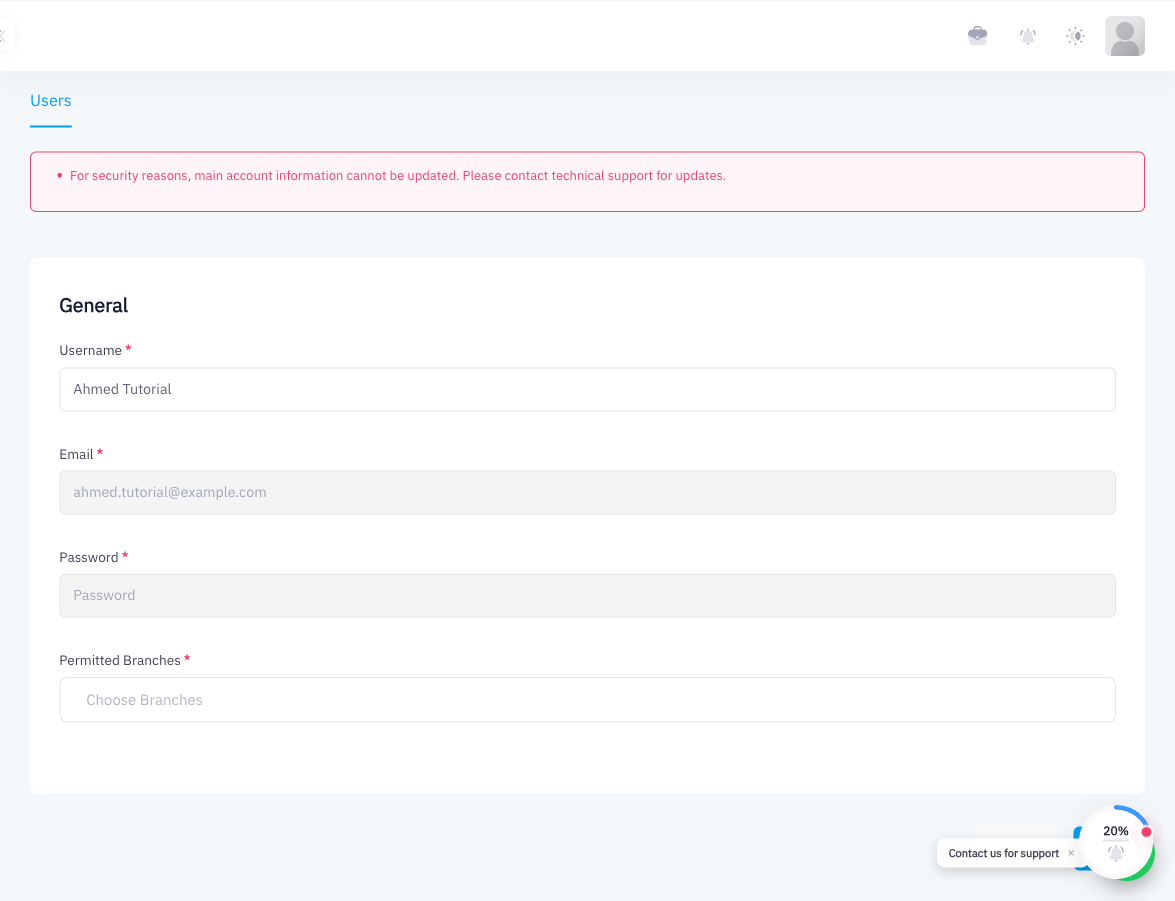
Step 3: Fill Account Details
Complete the employee's account information:
| Field | Description |
|---|---|
| Username | The name the employee will use to log in |
| Employee's email address (used for login and notifications) | |
| Password | Set an initial password (employee can change it later) |
Step 4: Assign a Permission Group
Select the appropriate Permission Group from the dropdown (for example, "Cashier" or "مدير (Manager)"). The group determines what sections and actions the employee can access. See Roles & Permission Groups for details.
Step 5: Select Permitted Branches
In the Permitted Branches section, check each branch the employee is allowed to access. You can select:
- One branch — for staff working at a single location
- Multiple branches — for supervisors or staff who rotate between locations
- All branches — for managers who oversee the entire business
Only the checked branches will be available to this employee when they log in.
Step 6: Save
Click Save. The employee account is created (or updated). The employee can now log in and will only see the branches they have been assigned.
Summary
Branch assignment in Point ensures that each employee sees only the locations relevant to their role. A cashier working at a single branch should have only that branch checked. Supervisors managing multiple locations can be given access to all relevant branches. Branch access is set on the employee record and takes effect immediately on the next login.