Managing Customers
Create and maintain customer profiles to personalize invoices, support ZATCA compliance, and track purchase history.
What You'll Learn
- How to create a customer profile with full contact and address details
- Why a VAT number is required for standard (B2B) ZATCA invoices
- How to attach a customer to a sale at the POS
Before You Begin
- You must have an active Point account with access to the Customers section
- For ZATCA standard invoices, have the customer's VAT number ready
Step 1: Go to Customers
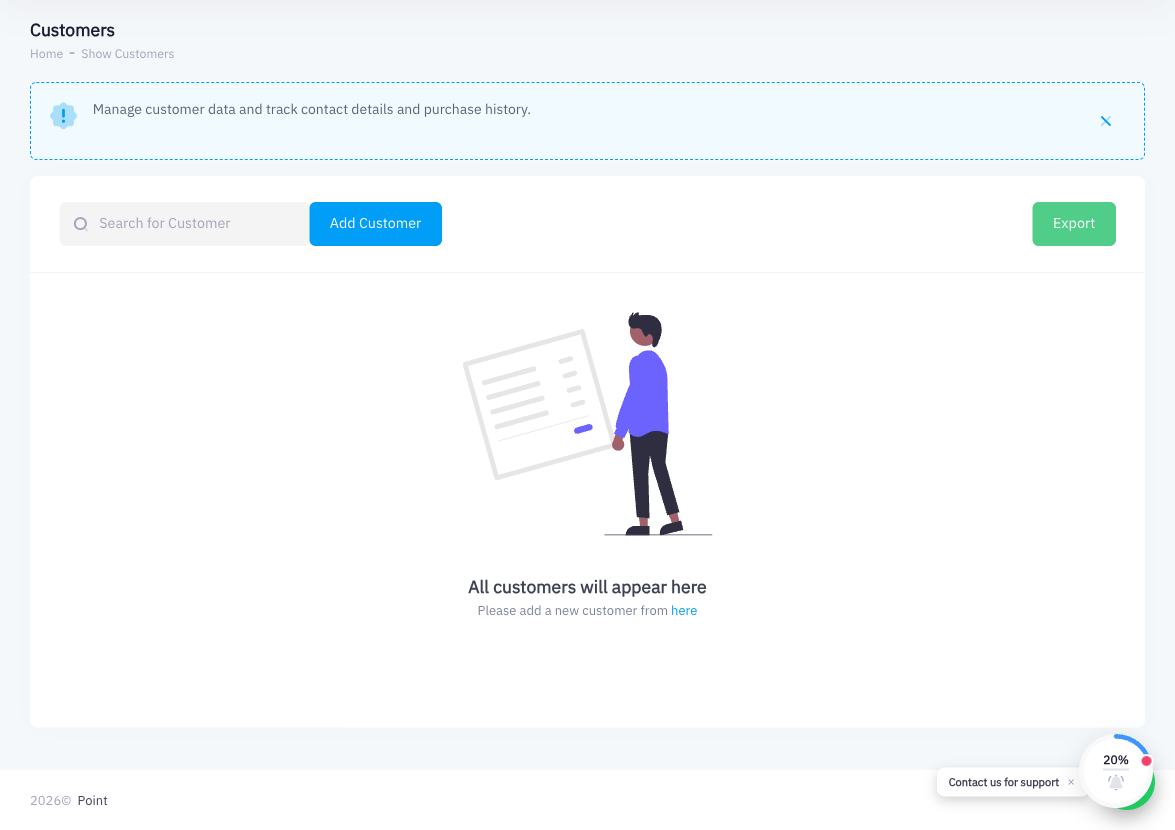
From the left sidebar, click Customers. You will see a list of all existing customer profiles.
Step 2: Click Add Customer
Click the Add Customer button at the top right of the page.
Step 3: Enter Customer Name
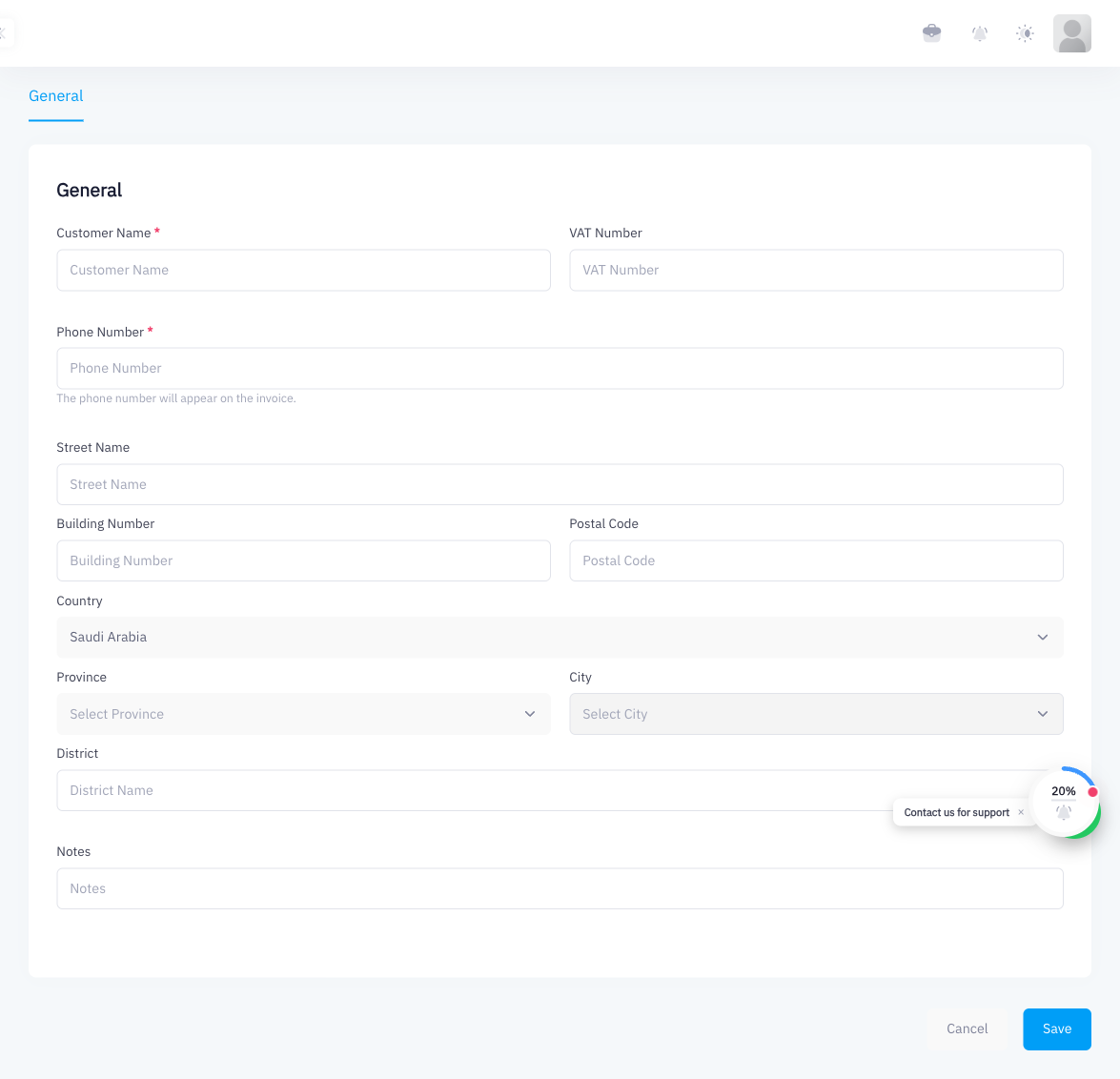
Type the customer's full name in the Customer Name field. This name appears on printed and digital invoices.
Step 4: Enter VAT Number
If this customer is a business (B2B), enter their VAT Number. Point uses this field to generate a standard ZATCA invoice instead of a simplified one. Without a VAT number, only simplified (B2C) invoices can be issued to this customer.
Step 5: Enter Phone Number
Enter the customer's Phone Number. This number appears on the invoice and can be used to look up the customer at the POS.
Step 6: Fill Address Fields
Complete the address section:
| Field | Example |
|---|---|
| Street Name | King Fahd Road |
| Building Number | 1234 |
| Postal Code | 12345 |
| Country | Saudi Arabia (default) |
| Province | Riyadh Province |
| City | Riyadh |
| District | Al Olaya |
A complete address is required for ZATCA standard (B2B) invoices. Make sure B2B customers have all address fields filled.
Step 7: Add Notes (Optional)
Enter any internal notes about this customer in the Notes field. Notes are not printed on invoices.
Step 8: Click Save
Click Save to create the customer profile. The customer now appears in your Customers list.
Step 9: Attach Customer to a Sale at POS
At the POS screen, look for the Customer search field (usually at the top of the cart area). Type the customer's name or phone number, select them from the dropdown, then proceed with the sale. The invoice will be issued in their name with their details.
Summary
Customer profiles store name, phone, VAT number, and address information. Attaching a customer to a sale personalizes the invoice and — when the customer has a VAT number and full address — enables ZATCA standard (B2B) invoice generation. You can view a customer's full purchase history by clicking their name in the Customers list.