Gift Cards (PrePaid Cards)
Issue prepaid gift cards, assign them to customers, and let cashiers redeem them at the POS.
What You'll Learn
- How to create and issue a PrePaid Card with an initial balance
- How to auto-generate a card code or set a custom one
- How cashiers redeem a card at checkout
Before You Begin
- You need permission to access the PrePaid Cards section
- Have the customer's name ready if you want to assign the card to a specific person
The Free plan allows 1 active gift card. The ابتدائي (Starter) plan and above allow unlimited gift cards.
Issuing a Gift Card
Step 1: Go to PrePaid Cards
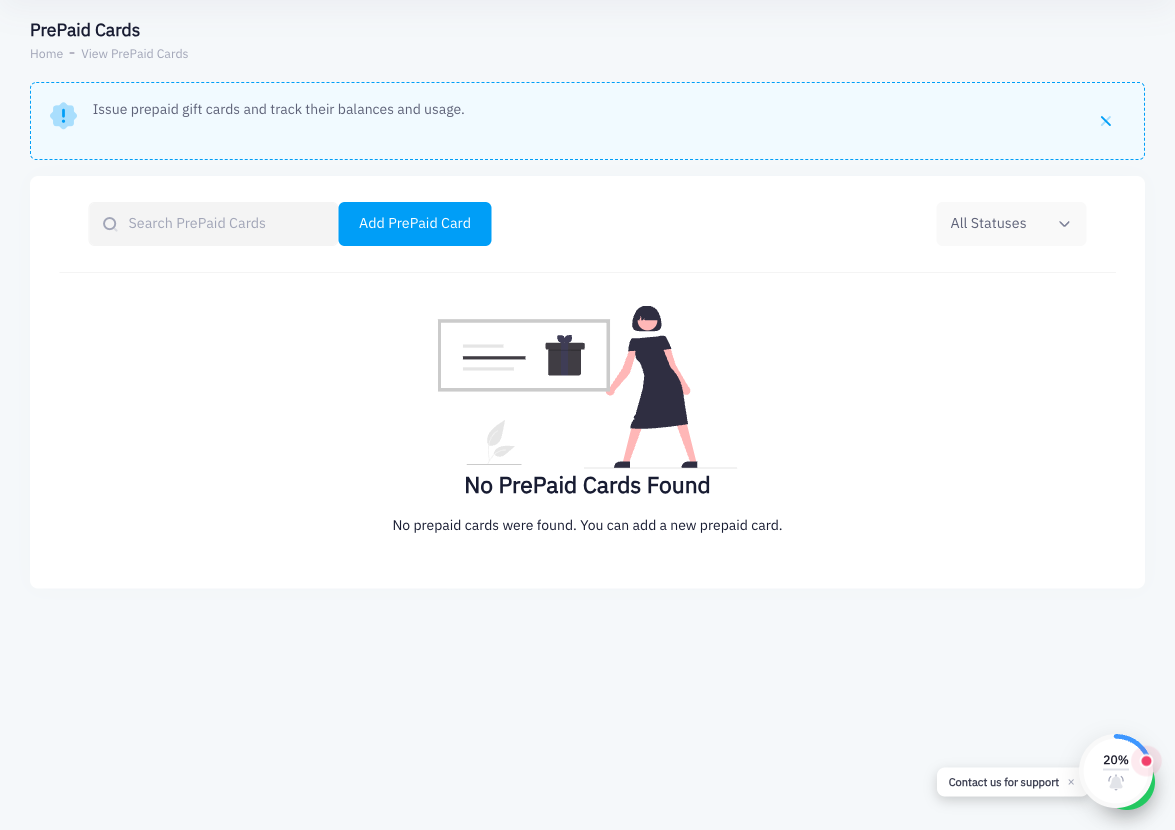
From the left sidebar, click PrePaid Cards. You will see a list of all issued cards with their statuses (Active / Stop).
Step 2: Click Add PrePaid Card
Click Add PrePaid Card at the top right.
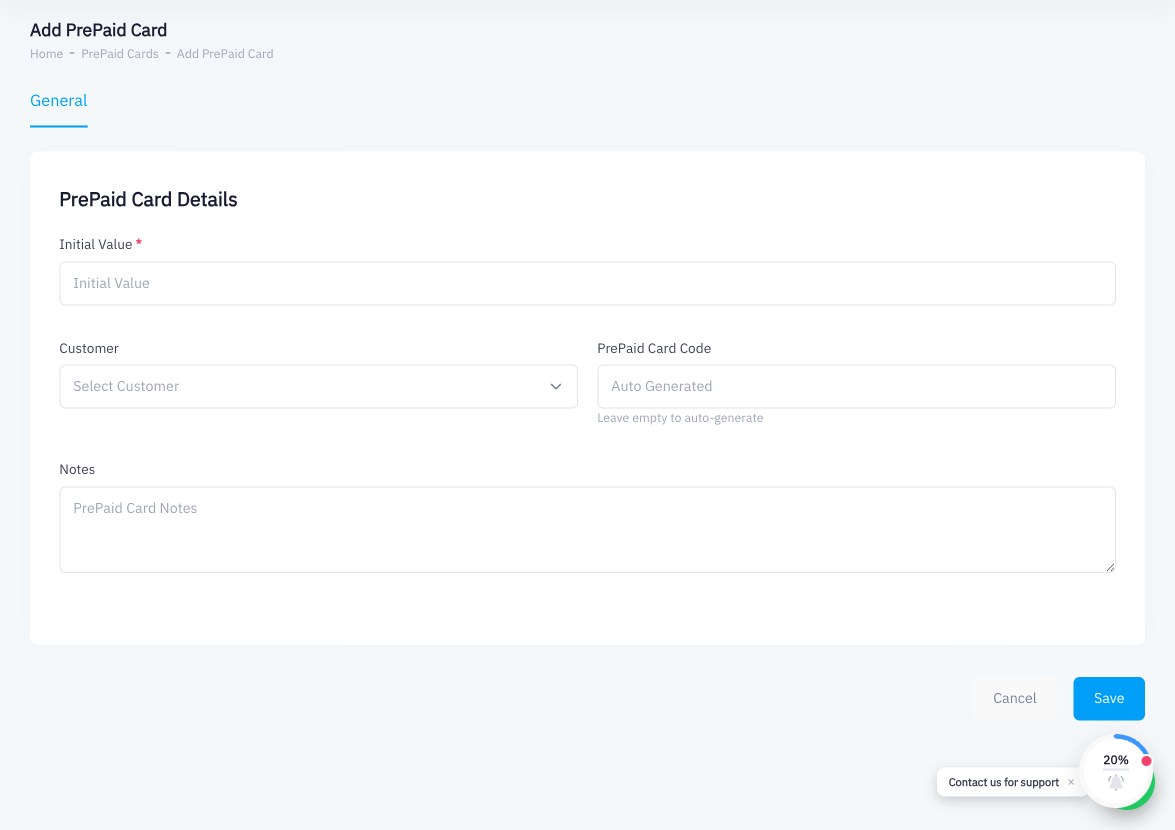
Step 3: Enter Initial Value
Type the card's starting balance in the Initial Value field (for example, 100 for SAR 100).
Step 4: Search for a Customer (Optional)
Use the Customer search field to assign the card to an existing customer. Leave it empty to issue an anonymous card.
Step 5: Set the Card Code
Leave the PrePaid Card Code field empty to have Point auto-generate a unique code. If you prefer a custom code (for example, a branded gift card number), type it in this field.
Step 6: Add Notes (Optional)
Add any relevant notes (for example, "Birthday gift for VIP customer").
Step 7: Click Save
Click Save. The card is now Active and ready to use.
Redeeming a Gift Card at POS
Step 1: Add Items to Cart
At the POS, add the products you want to sell to the cart as normal.
Step 2: Enter the Card Code
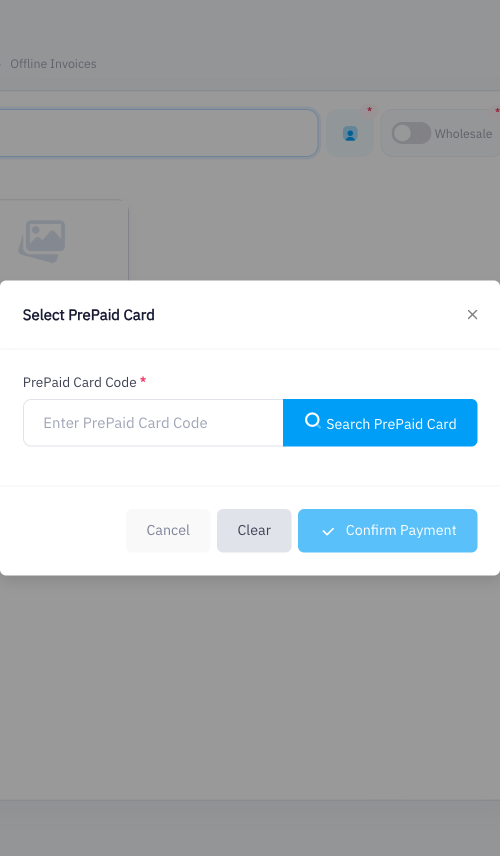
In the payment or checkout area, find the PrePaid Card Code field. Type or scan the card's code.
Step 3: System Deducts from Balance
Point checks the card's available balance and deducts the sale amount from it. If the card balance covers the full amount, no additional payment is needed. If not, the cashier can collect the remainder via cash or card.
Step 4: Complete the Payment
Confirm the payment to complete the sale. The invoice is generated and the card's remaining balance is updated.
Summary
PrePaid Cards (gift cards) let customers pay in advance. You issue a card with an initial value from the PrePaid Cards section, and cashiers redeem it at the POS by entering the card code at checkout. Cards can be assigned to specific customers or issued anonymously. The Starter plan and above support unlimited active gift cards.